
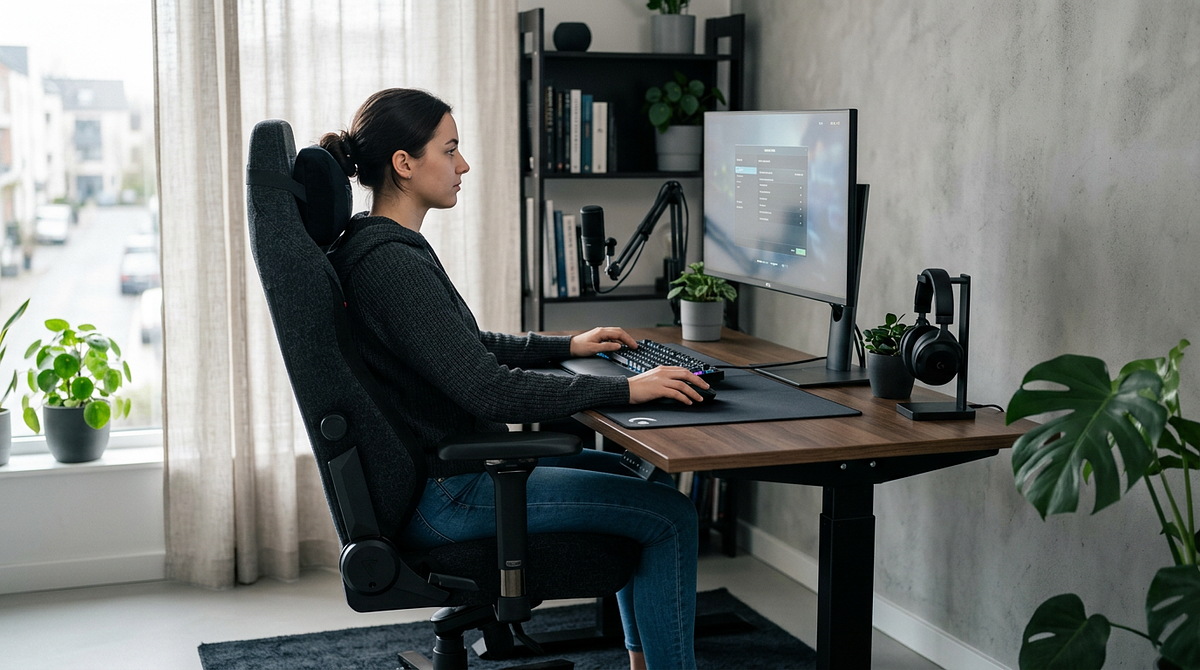
A good ergonomic gaming setup makes long sessions comfortable and sustainable. This guide covers monitor positioning, desk height, chair adjustments, and equipment recommendations across different budgets, along with specific guidance for FPS, MMO, and racing sim setups. By the end, you’ll be able to assess your current workspace, spot what needs to change, and make adjustments that reduce physical strain during extended gaming.
This guide gives you the practical details most people miss: specific measurements for monitor distance and viewing angles, desk height calculations based on your seated elbow position, and budget-tiered equipment recommendations that get your joints into a neutral position without requiring premium prices. You’ll get actionable adjustments for different gaming genres, tools to figure out which setup problems are causing your specific pain, and break protocols backed by evidence that help manage tissue load during long sessions.
Rather than generic product lists, you’ll learn the exact angles and distances that define proper ergonomic positioning, with DIY alternatives for budget-conscious gamers and specialized configurations for competitive FPS, MMO, and racing sim players. The measurements and self-assessment tools below let you check and correct your current workspace right now.
Essential Ergonomic Measurements for Your Gaming Setup
Precise measurements matter because neutral joint positioning reduces stress on your body during long sessions. When your body stays in natural alignment — elbows at 90-110°, wrists straight, eyes level with the top third of your monitor — your muscles and tendons work within their comfortable range. That prevents the slow buildup of strain that causes pain after hour three of gaming. The specs below give you the exact angles and distances to check your current setup.
Monitor Distance and Height Specifications
Where you put your monitor directly affects neck strain and eye fatigue. A screen placed too high forces your upper neck to extend backward, while one that’s too low or too far away pulls your head forward and overloads your neck muscles during long viewing sessions.
- Optimal viewing distance: Arm’s length (20-28 inches), plus or minus one hand length depending on screen size — larger displays go farther back
- Height positioning: Your eyes at horizontal level should meet the top third of the monitor, creating a 20-50° downward viewing angle to the screen center
- Tilt specification: 10-20° backward tilt keeps your viewing angle comfortable without requiring you to extend your neck
- Self-verification method: Extend your arm fully while seated — your fingertips should nearly touch the center of the screen
This positioning prevents the sustained upward gaze that causes tension headaches and the forward head posture that creates upper back pain between your shoulder blades.
Desk and Chair Height Relationship
The relationship between your elbows, desk, and keyboard determines the right height settings. When your forearms rest parallel to the floor with your hands on the keyboard, you’ve hit the neutral position that keeps your shoulders from rising and your wrists from bending.
- Seated elbow angle: 90-110° when hands rest on keyboard with forearms parallel to the floor
- Desk height calculation: Measure from the floor to your elbow while seated, then subtract 1-2 inches to get your target desk height
- Chair height adjustment: Feet flat on the floor with thighs parallel to the ground, creating a 90° knee angle
- Armrest positioning: Support your forearms without raising your shoulders — position them 1-2 inches below your natural elbow height
Adjustable-height desks let you alternate between sitting and standing throughout long sessions, which supports the load management approach covered in the pain prevention section.
Keyboard and Mouse Positioning for Neutral Wrists
Four things cause wrist and forearm strain: mouse overreach (extending your arm past shoulder width), forearm pronation (rotating your palm down), wrist extension (bending your wrist upward), and ulnar deviation (angling your wrist toward your pinky finger). Proper positioning gets rid of all four.
- Keyboard placement: Directly in front of your shoulders, centered on your body rather than shifted to one side to make room for the mouse
- Mouse positioning: Inside shoulder width so you’re not reaching — competitive FPS players using low DPI will need extra lateral space for arm movement
- Wrist angle: A straight line from your forearm through your hand, with no upward, downward, or sideways bending
- Keyboard slope: 0° or negative tilt preferred (back edge lower than front) to keep your wrists from bending upward while typing
Split keyboards or TKL (tenkeyless) designs reduce mouse overreach by removing the numpad, bringing your mouse 3-4 inches closer to your body’s centerline without any awkward keyboard rotation. If you want to understand how switch types and layouts affect your options, our guide to mechanical keyboard switch types and layouts covers the differences in detail.
Building Your Ergonomic Gaming Setup Across Budget Tiers
Ergonomic principles — neutral positioning and adjustability — matter more than expensive products. A $150 office chair with proper lumbar support and height adjustment will serve you better than a $400 fixed gaming chair that locks your body into predetermined angles. The tiers below show how to get neutral joint positioning at different price points, including DIY solutions that deliver real ergonomic benefits without specialized gear.
Budget Tier ($100-300): DIY Ergonomic Optimization
You can modify existing furniture to achieve neutral positioning using household items and inexpensive accessories. This tier focuses on fixing the most common setup problems — monitor too low, no lumbar support, desk at the wrong height — without replacing major pieces of furniture.
- Chair modification: A rolled towel or small pillow positioned at your lower back curve (just above the belt line) provides lumbar support
- Monitor height adjustment: Stack books, use a monitor stand, or install a basic wall-mount arm to get the top third of the screen to eye level
- Desk height correction: A keyboard tray attachment or desk riser blocks can get you to a 90° elbow angle when your existing desk sits too high
- Footrest alternative: A cardboard box or stacked books support your feet if they don’t reach the floor after you’ve adjusted your chair height
- Mouse surface: A large mousepad or desk mat (36″+ width) gives you room for low-DPI arm movement without hitting the desk edge
Adjustability matters more than “gaming” branding. Office chairs with seat height, backrest angle, and armrest adjustment will outperform fixed gaming chairs that lock you into one position regardless of your body size.
Mid-Range Tier ($300-800): Adjustable Equipment Foundation
This tier is about multi-axis adjustability so you can dial in a fit that actually matches your body and how you play. Instead of accepting fixed dimensions, you get real control over your positioning.
- Ergonomic office chair: Mesh back with adjustable lumbar support, seat height, armrest height and width, and backrest recline (Secretlab Titan, Herman Miller Aeron alternatives)
- Height-adjustable desk: Manual crank or electric standing desk (48-72″ width) so you can alternate between sitting and standing during sessions
- Monitor arm: Gas-spring single or dual arm for precise height, distance, and tilt adjustment independent of the desk surface
- Ergonomic keyboard options: TKL mechanical keyboard or split design (Kinesis Freestyle Edge) reduces mouse overreach by 3-4 inches
- Wrist rest consideration: Memory foam support for keyboard and mouse only during breaks — not during active gaming, where it promotes wrist extension
A standing desk supports the 20-minute position change recommendation for tissue load management, letting you alternate between sitting and standing without interrupting gameplay during natural pauses.
Premium Tier ($800+): Specialized Ergonomic Solutions
Premium gear targets specific pain points or competitive performance needs. This tier gives you the refinement that eliminates remaining discomfort after you’ve already addressed the basics.
- Advanced ergonomic chair: Fully adjustable with headrest, 4D armrests, synchronized tilt mechanism (Herman Miller Embody, Steelcase Gesture)
- Electric standing desk: Programmable height presets, stable at full extension, 60-80″ width for multi-monitor configurations
- Ergonomic keyboard systems: Fully split mechanical with tenting (Kinesis Freestyle Edge + Lift Kit, ErgoDox) or contoured designs
- Vertical/ergonomic mouse: Reduces forearm pronation for non-competitive gaming — MMO and strategy genres where precision matters less than comfort
- Monitor configuration: Dual-arm setup or ultrawide curved display (1500R-1800R curvature) maintaining arm’s length distance across the full viewing area
Competitive FPS and MOBA players may put performance peripherals ahead of ergonomic designs. Genre-specific needs require different trade-offs, which the next section covers.
| Feature Category | Budget Tier ($100-300) | Mid-Range Tier ($300-800) | Premium Tier ($800+) |
|---|---|---|---|
| Chair Adjustability | Seat height only (DIY lumbar support) | Seat height, armrests, lumbar, backrest angle | Full 4D armrests, headrest, synchronized tilt, adjustable lumbar |
| Desk Height Control | Fixed height + keyboard tray or risers | Manual crank or basic electric standing desk | Programmable electric with memory presets |
| Monitor Positioning | Book stacks or basic fixed stand | Single gas-spring monitor arm | Dual monitor arms or premium ultrawide setup |
| Keyboard Ergonomics | Standard full-size or TKL | TKL mechanical or entry split design | Fully split with tenting or contoured ergonomic |
| Position Variation | Manual adjustments between sessions | Sit-stand capability during sessions | Seamless position changes with presets |
Genre-Specific Ergonomic Adjustments for Gaming Styles
How you use your inputs shapes what positioning works best. Keyboard-heavy MMO gameplay puts different demands on your body than mouse-intensive FPS aiming, and racing sims with wheel peripherals need an entirely different setup. The adjustments below tailor your configuration to what your primary genre actually requires physically.
Competitive FPS/Battle Royale Setup (Mouse-Intensive)
Low-DPI arm-aiming creates the mouse overreach problem. Your aiming hand needs to travel 12-18 inches horizontally during flick shots while keeping your wrist in a neutral position. That means making some trade-offs on keyboard placement to create enough mouse space.
- Keyboard positioning: 30-45° rotation (WASD cluster angled toward your body center) creates mouse space without extreme reaching
- Mouse placement: Large mousepad (36″+ width) extending well inside your shoulder line for full arm movement
- Desk height: Slightly lower than standard 90° elbow (85-90°) to allow unrestricted horizontal arm sweeps
- Chair armrest: Lowered or removed on the mouse side to avoid restricting wide flicks
- Monitor distance: Closer end of the range (20-24″) for better peripheral awareness in fast-paced scenarios
Competitive players often sacrifice neutral wrist positioning on the keyboard hand to get the mouse side right. Focus your strain prevention on your dominant aiming hand, since that’s where repetitive motion creates the greatest injury risk.
MOBA/RTS Setup (Keyboard-Heavy with Precision Clicking)
MOBA and RTS gaming demands rapid keyboard inputs for abilities and precise mouse clicks for unit selection at the same time. Both hands need keyboard access, so you can’t use the extreme rotation that works in FPS setups.
- Keyboard positioning: Centered on your body with minimal rotation since both hands need keyboard access
- Mouse placement: Closer to the keyboard (inside shoulder width) since movement is precision clicking rather than sweeping
- Wrist support: Consider a palm rest for the keyboard during ability cooldowns, but remove it during active teamfights to avoid wrist extension
- Desk height: Standard 90° elbow angle supports rapid key presses without fatigue
- Monitor distance: Mid-range (24-26″) balancing minimap visibility with teamfight detail
TKL or 60% keyboards significantly reduce mouse overreach for this genre since the numpad goes unused anyway. Cutting 3-4 inches of width brings your mouse hand closer to neutral shoulder alignment.
MMO/RPG Setup (Extended Session Endurance)
For MMO and RPG gaming, session length (6-10 hours) matters more than twitch performance. Comfort and position variation take priority over competitive fine-tuning, since precision timing is less critical than staying focused during marathon raids or grinding sessions.
- Standing desk use: Alternate sitting and standing every 45-60 minutes to manage tissue load across long sessions
- Keyboard positioning: Centered with an optional split design or ergonomic layout, since precision timing is less critical than in FPS
- Mouse selection: An ergonomic vertical mouse works well here since precision aiming isn’t needed for tab-targeted abilities
- Armrest use: Full support on both sides during slower-paced content (questing, crafting) reduces static shoulder load
- Monitor distance: Farther end of the range (26-28″) reduces eye strain during long sessions
MMO players benefit most from full ergonomic setup because the competitive disadvantage from ergonomic peripherals is minimal. You can focus on comfort without giving up performance.
Racing Sim/Flight Sim Setup (Specialized Peripheral Considerations)
Wheel and HOTAS peripherals create positioning challenges that standard desk ergonomics don’t address. Racing position requires reclined seating and angled pedal placement that’s completely different from a typical office setup.
- Wheel/HOTAS placement: Positioned to keep your elbows at 90-110° with hands on the controls — this may require lowering the desk or using a dedicated sim rig
- Seating position: Reclined 100-110° backrest angle (racing position) rather than the upright 90° office posture
- Pedal positioning: Angled footrest or dedicated pedal plate maintaining a 90° knee angle without straining your hip flexors
- Monitor distance: Closer positioning (20-22″) or a VR headset for an immersive field of view
- Session breaks: Critical every 45 minutes because of static leg positioning and limited movement opportunity
Dedicated sim rigs solve the ergonomic challenges but require space and budget. Wheel desk clamps are a workable alternative as long as you adjust the height properly to keep neutral elbow angles during long driving sessions.
Diagnosing and Correcting Pain Points in Your Current Setup
Pain means your positioning is exceeding what your tissues can handle. The demand vs. capacity framework explains why: when sustained load (holding a mouse position, maintaining a neck angle) stays higher than what your tissues can tolerate, inflammation and pain follow. The diagnostic tools below help you figure out which specific ergonomic problems are causing your symptoms so you can fix the right things first.
Wrist and Forearm Pain (Extension, Deviation, Pronation)
Four keyboard and mouse risk factors cause wrist strain: extension (bending upward), ulnar deviation (angling toward the pinky), forearm pronation (palm-down rotation), and mouse overreach (extending past shoulder width). Figuring out which ones affect your setup points you toward the right fixes.
Diagnostic Self-Assessment:
- Does pain get worse after 2+ hours of gaming and improve with breaks?
- Do you notice your wrist bending upward (extension) when your hands rest on the keyboard or mouse?
- Are your wrists angled outward toward your pinky fingers (ulnar deviation) during use?
- Do you get numbness or tingling in your fingers after long sessions?
Corrective Actions:
- Eliminate wrist extension: Remove keyboard feet, use a negative-tilt keyboard tray, or switch to a 0° slope keyboard to keep a straight wrist-to-forearm line
- Reduce ulnar deviation: Rotate the keyboard to line up the home row with your forearm angle, or switch to a split keyboard that lets you position each module independently
- Address forearm pronation: Add 5-10° keyboard tenting (Kinesis Lift Kit or a DIY book-under-thumb-side setup) to reduce forearm rotation
- Reposition mouse: Move the mousepad inside your shoulder line, and switch to a TKL layout to stop reaching around the keyboard
Wrist rests should only be used during breaks. Using them during active gaming promotes wrist extension and increases carpal tunnel pressure by compressing the median nerve against the rest surface.
Neck and Upper Back Tension (Monitor Height Issues)
Neck pain usually comes from looking up for too long (monitor too high) or forward head posture (monitor too low or too far away). Both patterns overload the small muscles at the base of your skull and between your shoulder blades.
Diagnostic Self-Assessment:
- Does neck stiffness concentrate at the base of your skull or between your shoulder blades?
- Do you notice your chin jutting forward or your head tilting back while gaming?
- Does the pain improve when you consciously sit upright but come back when you relax into your natural posture?
- Is your monitor above or below horizontal eye level when you sit upright?
Corrective Actions:
- Adjust monitor height: Position the top third of the screen at horizontal eye level (20-50° downward gaze to screen center)
- Verify viewing distance: Extend your arm fully — fingertips should nearly touch the screen center (adjust desk depth or monitor arm accordingly)
- Add monitor tilt: Angle the screen 10-20° backward to maintain your viewing angle without neck extension
- Check chair backrest: Make sure lumbar support maintains your natural spine curve — slouching pushes your head forward to see the screen
Dual-monitor setups need the primary screen centered on your body with the secondary angled 30° to the side to cut down on neck rotation. Avoid placing monitors side-by-side at equal distance, which forces constant rotation between displays.
Lower Back Pain (Chair and Posture Dysfunction)
Lower back pain usually comes from inadequate lumbar support or sitting in the same position for too long. Your lower spine has a natural curve that needs support — without it, you slouch, which overloads your spinal discs and surrounding muscles.
Diagnostic Self-Assessment:
- Does pain get progressively worse throughout a gaming session (worse at hour 4 than hour 1)?
- Do you notice yourself slouching or sliding forward in your chair during long play?
- Does standing up after a long session cause immediate lower back stiffness?
- Is there a gap between your lower back and the chair backrest when you’re seated?
Corrective Actions:
- Add lumbar support: Position a rolled towel or lumbar pillow at your natural lower back curve (just above the belt line)
- Adjust seat depth: Make sure there’s a 2-3 finger gap between the seat edge and the back of your knees (prevents hamstring pressure and forward sliding)
- Implement sit-stand rotation: Change positions every 45-60 minutes using a standing desk or standing breaks
- Verify seat angle: A slight forward tilt (1-2°) helps maintain your lumbar curve and prevents slouching
Gaming chair recline features encourage slouching during active gameplay. Look for chairs with adjustable lumbar support and upright positioning rather than racing-style bucket seats designed for passive viewing.
Shoulder and Trapezius Strain (Armrest and Desk Height)
Shoulder elevation from armrests set too high, or completely unsupported arms, causes trapezius overload. The muscles between your neck and shoulders fatigue from holding up your arm weight in static positions during long sessions.
Diagnostic Self-Assessment:
- Do your shoulders feel elevated or tense during gaming, with pain between your neck and shoulder?
- Are your armrests pushing your shoulders upward, or are your arms completely unsupported?
- Does pain concentrate on your mouse-side shoulder (from reaching or elevated mousing)?
- Do you notice your shoulder hiking up when your hands are on the keyboard or mouse?
Corrective Actions:
- Adjust armrest height: Position them 1-2 inches below your natural elbow height so your arms rest lightly without your shoulders rising
- Verify desk height: Confirm your forearms are parallel to the floor when your hands are on the keyboard — a desk that’s too high forces shoulder elevation
- Reduce mouse overreach: Switch to a TKL keyboard or rotate the keyboard to bring the mouse inside your shoulder line
- Support forearms: Use the desk edge or armrests to support forearm weight during slower-paced gaming (not during active FPS play)
Competitive players often remove armrests on the mouse side for freedom of movement. If you do that, compensate with a lower desk height and frequent shoulder rolls between matches to prevent trapezius overload from unsupported arm weight. For a complete overview of how to position your keyboard and mouse to minimize strain, this ergonomic keyboard and mouse setup guide walks through the full process.
Active Break Protocol for Load Management
Even a perfect ergonomic setup requires movement breaks to prevent tissue overload. Sustained positioning — no matter how neutral — will eventually exceed tissue tolerance without circulation restoration and position variation.
- Every 20-30 minutes: Take a 20-second eye break by looking at something 20+ feet away to reset eye accommodation
- Every 45-60 minutes: Take a 2-3 minute standing break with shoulder rolls, neck rotations, and wrist circles to restore circulation
- Every 2 hours: Take a 5-minute walk or do a light stretching routine (doorway chest stretch, standing quad stretch, cat-cow spine mobility)
- Between competitive matches: Use natural game pauses to stand up, shake out your hands, and shrug your shoulders rather than staying seated
Movement breaks are non-negotiable for injury prevention. Even professional esports athletes build structured break protocols into their practice schedules because tissue capacity requires active recovery between high-demand periods.
Implementing Your Ergonomic Gaming Configuration for Sustained Performance
Your ergonomic gaming setup is performance infrastructure. Neutral positioning and load management are what let you get through 5-10 hour sessions without accumulating the kind of injury debt that forces breaks or causes permanent damage. The measurement checklist (monitor height at top-third eye level, desk height creating 90° elbows, wrists straight during use) gives you an immediate way to assess your current configuration.
Start with these measurements today using DIY solutions, then gradually upgrade your equipment within your budget as pain points reveal themselves during long sessions. Pair the physical positioning with the break protocol — 20-second eye breaks every 30 minutes, standing breaks every hour — to manage tissue load across marathon gaming sessions while keeping your focus sharp.
Frequently Asked Questions About Ergonomic Gaming Setups
What’s the ideal desk height for gaming if I’m 5’10” tall?
Desk height should put your forearms parallel to the floor when seated with elbows at 90-110°. For someone 5’10”, that’s typically 28-30 inches, but arm length varies from person to person. Measure from the floor to your seated elbow height and subtract 1-2 inches for a precise fit. Adjustable-height desks remove the guesswork by letting you dial in the position while you’re actually seated.
Can I use a gaming chair for office work or do I need separate chairs?
Gaming chairs with adjustable lumbar support, seat height, and armrests work just as well as ergonomic office chairs for desk work. The “gaming” label mostly affects aesthetics, not ergonomic capability. Focus on adjustability features rather than marketing labels — many office chairs actually offer better lumbar support than gaming chairs at the same price.
How often should I replace my gaming chair for optimal ergonomic support?
Replace your chair when the lumbar support compresses and no longer maintains your lower back curve, when the seat cushion bottoms out (less than 2 inches of padding remaining), or when adjustment mechanisms stop working. With daily multi-hour use, that’s typically every 3-5 years. Mesh-back chairs often outlast foam padding, and premium models have replaceable components that can extend their lifespan to 7-10 years.
Do blue light glasses help with eye strain during long gaming sessions?
Blue light glasses have minimal evidence behind them for reducing eye strain. The real culprits are inadequate blinking (which drops from about 15 to 5 blinks per minute when you’re focused on a screen) and holding your eyes at a fixed distance for too long. The 20-20-20 rule works better: every 20 minutes, look at something 20+ feet away for 20 seconds. Also make sure your monitor brightness matches your ambient room lighting.
Should I use a footrest if my feet don’t touch the floor when seated?
Yes. If your feet don’t reach the floor after you’ve set your chair height for a proper 90° elbow angle, you need a footrest. Unsupported legs create hamstring pressure and cause you to slide forward, which disrupts your lumbar positioning. A footrest, stacked books, or a small box all work — the goal is a 90° knee angle with feet flat, which prevents circulation restriction and lower back strain.
Is a curved monitor better for ergonomics than a flat screen?
Curvature genuinely earns its keep on ultrawide displays (34″+), where it keeps your eyes at a consistent distance across the full screen width — something a flat panel simply can’t do. For standard 24-27″ monitors, proper positioning matters far more than curvature ever will. If you’re still deciding which setup suits your workspace, browsing budget-friendly gaming setup accessories can help you find the right fit.