
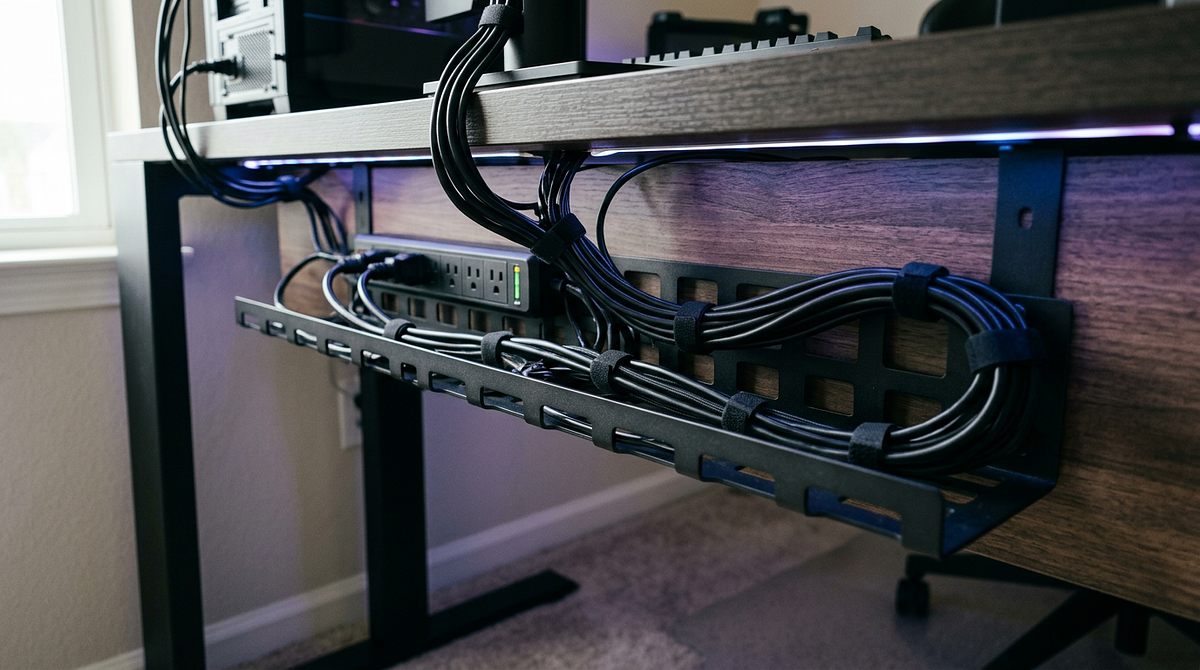
Gaming desk cable management is the process of organizing and routing the cables on your gaming setup so they stay tidy, accessible, and out of the way. This guide covers everything from taking stock of your existing cables to installing management solutions, with product recommendations for different budgets and setups that include multiple monitors, RGB lighting, and streaming gear. You’ll find options at three difficulty levels, plus renter-friendly approaches that don’t require permanent changes. By the end, you’ll have enough information to plan and build a cable management system that fits your space and skill level.
Essential Cable Management Products and Budget Planning
Picking the right cable management products before you start saves you from mid-project hardware runs and stops you from spending money on stuff you don’t need. Knowing what each budget tier gets you makes it easier to choose products that actually match your desk setup and cable count.
Three Budget Tiers for Beginner Cable Management
All three budget tiers will get your cables organized. Higher budgets add convenience and better aesthetics, not just basic function. Most beginners find the Standard Setup tier hits the best balance between cost and coverage.
| Budget Tier | Price Range | Core Products Included | Best For | Setup Time |
|---|---|---|---|---|
| Quick Fix | $15-25 | Velcro cable ties (60-pack), adhesive cable clips (20-pack), basic cable sleeve (10ft) | Renters, temporary setups, minimal visible cable reduction | 30-45 minutes |
| Standard Setup | $40-60 | Under-desk cable tray, cable management box, cable clips, zip ties, 2-3 cable sleeves | Permanent desks, moderate cable counts (8-12 devices), clean under-desk routing | 2-3 hours |
| Complete System | $80-120 | Premium cable tray with dividers, cable management spine, magnetic cable holders, multiple sleeves, cable labels | Multi-monitor gaming setups, streaming equipment, RGB lighting systems, content creation rigs | 4-6 hours (staged over weekend) |
Most beginners do well with the Standard Setup tier. It covers what a typical gaming desk needs without overspending.
Pre-Made Kits vs. Individual Products
Pre-made kits are convenient. Buying individual products gives you more control over what you get. Here’s how to decide which approach makes sense for you.
Pre-Made Cable Management Kits:
- Include 150-200 mixed pieces (ties, clips, sleeves, mounts) in one purchase
- Cost $15-30 and cover a wide variety without requiring you to research individual products
- Good for beginners who aren’t sure exactly what they need and want to try a few different solutions
- Often include too many of some items and not enough of others for specific setups
Individual Product Approach:
- Lets you buy the exact quantities you need based on your actual cable count and desk dimensions
- Requires measuring your desk underside and counting cables before you buy anything
- Typically costs $5-15 more than kits, but you won’t end up with a pile of unused parts
- Works best for beginners who have already done the cable inventory process (covered in the next section)
Core Product Categories Explained
Cable management products fall into four main categories. Knowing what each one does helps you figure out which ones you actually need.
- Cable Trays/Raceways: Under-desk mounting channels (metal mesh or solid plastic) that create a dedicated path for multiple cables running from your desk to a power source. Important for managing 6+ cables cleanly.
- Cable Sleeves/Wraps: Flexible fabric or neoprene tubes that bundle 3-8 cables together into one visual element. Great for the visible cable run from desk edge to floor.
- Adhesive Clips and Mounts: Small plastic holders that attach to desk undersides or walls to guide individual cables along a specific route. Best for securing cables every 8-12 inches to stop them from sagging.
- Cable Ties and Straps: Velcro or zip-tie fasteners that bind multiple cables together at junction points. Velcro ties are the better choice for beginners since you can adjust them if you need to change your routing later.
The Standard Setup tier includes at least one product from each category, giving beginners a complete toolkit for a typical gaming desk.
Step-by-Step Cable Management Process From Scratch
This five-phase process breaks cable management into stages you can finish in one session or spread across a few evenings. Each phase builds on the last, taking you from initial assessment through final installation in a logical order.
Phase 1 – Cable Inventory and Identification (15-20 minutes)
Before you buy anything, figure out what cables you have and how many. This inventory gives you the measurements you need to buy the right products in the right quantities.
- Photograph your current setup from multiple angles to document how cables are currently routed and spot the problem areas where they tangle or create visual clutter.
- Label each cable at both ends using masking tape and a marker with the device name (for example, “Monitor 1 Power,” “Keyboard USB,” “PC Power”) so you can identify everything throughout the reorganization process.
- Sort cables into three categories using your labels: power cables (thick, usually black, connect to outlets), data cables (thinner, connect devices to your PC or monitors), and peripheral cables (USB connections for keyboard, mouse, headset, and controllers).
- Count cables in each category and measure the longest cable run from your desk’s back edge to the nearest power outlet. This tells you how long your cable sleeves and trays need to be.
- Sketch a simple top-down view of your desk, marking where each device sits and drawing your intended cable routes. This helps you visualize the plan before you spend any money.
This whole phase takes about one evening and gives you everything you need to shop with confidence.
Phase 2 – Under-Desk Cable Tray Installation (30-45 minutes)
Install the cable tray first. It creates a clear path for all your cables and forms the foundation for every other routing decision you’ll make.
- Clean the desk underside with rubbing alcohol where the cable tray will mount. This helps adhesive strips or clamps stick properly.
- Position the cable tray 2-3 inches from the desk’s back edge, running parallel to the desk length. This keeps cables hidden from the front while still being easy to access.
- Mark mounting points with a pencil at 12-inch intervals along the tray’s length so the tray sits level and distributes cable weight evenly.
- Attach the tray using the included mounting method: adhesive strips for non-permanent setups, clamp mounts for desks with a lip, or screws if you’re okay with permanent mounting.
- Test the tray’s weight capacity by placing a few cables in it and gently pulling downward. Make sure it’s secure before loading all your cables in.
Adhesive-mounted trays can safely hold 10-12 standard cables without any drilling, which makes them a solid choice for renters or anyone who doesn’t want to modify their desk permanently. If you’re planning a small room setup, check out these gaming setup ideas for small rooms that save space to see how cable management fits into compact configurations.
Phase 3 – Primary Cable Routing and Bundling (45-60 minutes)
Route cables in order: power first, then data, then peripherals. This stops you from having to reroute earlier cables when you add later ones. It also keeps cable groups separated throughout the process.
- Route all power cables first, running them from devices through the cable tray to the power strip. Keep power cables on one side of the tray, away from data cables.
- Bundle power cables together using Velcro cable ties every 8-10 inches inside the tray. This stops individual cables from shifting around when you adjust the desk.
- Route data cables (monitor cables, ethernet) second, along the opposite side of the tray from the power cables. Keeping them separated reduces the chance of electromagnetic interference.
- Add peripheral cables (USB for keyboard, mouse, headset) last. These are usually shorter, so they can fill the remaining tray space or run along desk edges using adhesive clips.
- Leave 2-3 inches of slack at each device connection point so you can reposition devices slightly without putting tension on the cables or risking port damage.
This phase takes the most time but delivers the biggest visual improvement. If you’re spreading the project over multiple sessions, this is a good stopping point.
Phase 4 – Vertical Cable Management (20-30 minutes)
The vertical cable run from your desk edge to the floor is usually the most visible section, so it benefits the most from a cable sleeve. Vertical routing needs a slightly different approach than horizontal under-desk routing.
- Gather all cables exiting the cable tray at the desk’s back corner into one bundle using a large Velcro tie.
- Measure the vertical distance from the desk underside to the floor and cut a cable sleeve 2-3 inches longer than that measurement to give yourself a little room to adjust.
- Feed the bundled cables through the cable sleeve by opening the sleeve’s split seam and wrapping it around the bundle, starting at the desk end and working toward the floor.
- Secure the sleeve’s top end to the desk underside using an adhesive cable clip at the point where the sleeve meets the cable tray exit.
- Position the power strip on the floor directly below the cable sleeve exit point to keep the exposed cable length between the sleeve and the power connections as short as possible.
A cable sleeve turns a bundle of 8-12 individual cables into a single clean visual element. It’s the biggest aesthetic improvement you can make with the least amount of effort.
Phase 5 – Final Adjustments and Maintenance Setup (15-20 minutes)
After living with the setup for a few days, you’ll often spot small tweaks that improve the routing. This phase locks in those adjustments and sets up a maintenance routine that keeps things from getting messy again over time.
- Test all device connections by powering on each device and checking that cables have enough slack for normal use without pulling on any ports.
- Add adhesive cable clips along any sagging cable sections between the cable tray and devices to clean up any remaining droop.
- Photograph your completed cable routing from multiple angles so you have a reference if you need to disconnect devices for cleaning or upgrades later.
- Create a simple cable map listing which cables connect to which devices and how they route through the tray. Store it digitally or tape it to the desk underside for future reference.
- Schedule a monthly cable check (set a phone reminder) to inspect cable ties for loosening, check that adhesive clips are still holding, and clear out any dust that’s built up in the cable tray.
This maintenance routine keeps your cable management from degrading over time and makes adding new devices easier since you already know how everything is routed.
Gaming-Specific Cable Management Challenges and Solutions
Gaming setups have specific challenges that general cable management guides tend to gloss over. RGB lighting systems, multiple monitors, and streaming equipment all create routing problems that need gaming-focused solutions.
RGB Lighting and Controller Cable Management
RGB lighting systems add 3-5 extra cables (controller boxes, LED strips, RGB fans) on top of your standard gaming peripherals. These cables also need to stay accessible since you’ll frequently adjust lighting settings. For a broader look at how LED lighting fits into a gaming workspace, see this gaming setup LED lights placement and product guide.
- Centralize RGB controllers in one cable tray section: Set aside a 12-inch segment of your cable tray just for RGB controller boxes and hubs. Use Velcro strips to mount the controllers directly to the tray bottom so they’re easy to reach when you want to change lighting settings.
- Route RGB LED strip cables along desk edges: Use adhesive cable clips every 6-8 inches to guide LED strip power cables along the desk’s back and side edges. They’ll be hidden from view but still easy to reposition if you want to move the strips.
- Label RGB cables with colored tape matching their function: Use red tape for power cables, blue tape for data and control cables, and green tape for LED strip connections. This makes it much faster to identify RGB cables when you’re troubleshooting.
- Keep RGB controller remotes accessible: Mount a small adhesive cable clip on the desk’s front edge to hold RGB remotes when you’re not using them. This stops them from disappearing behind monitors or falling on the floor.
RGB cables need more frequent adjustments than standard cables since you’ll often reposition LED strips or add new RGB components. That’s why Velcro ties are a better choice than zip ties for RGB-specific routing.
Multiple Monitor Cable Management
Adding a second or third monitor doubles or triples your cable count. Each monitor adds 2-3 cables (power, video, USB for built-in hubs) that need to route cleanly without creating a mess behind your monitors.
- Use monitor arms with integrated cable channels: Monitor arms with built-in cable routing guide power and video cables through the arm structure, which gets rid of visible cables between your monitors and desk. You can also reposition monitors without disrupting your cable management.
- Create dedicated cable tray sections per monitor: Divide your cable tray into zones using cable ties as separators, with one section per monitor. This stops cables from getting mixed together, which makes future upgrades or troubleshooting much simpler.
- Route monitor cables vertically before horizontal tray routing: Run each monitor’s cables straight down from the monitor base to the desk surface using adhesive clips, then route them horizontally through the cable tray. Angling cables directly to the tray creates visible droop.
- Buy identical cable lengths across monitors: When replacing monitor cables, get the same length for all monitors. Uniform cable lengths create consistent routing patterns that look deliberate rather than thrown together.
Triple-monitor setups benefit a lot from monitor arms. Routing 9+ cables (3 per monitor) through traditional desk-mounted stands creates cable congestion that’s hard to avoid any other way.
Common Beginner Mistakes and Prevention
Some cable management approaches seem like good ideas but cause problems once you’ve actually done them. Here are the most common mistakes and how to avoid them.
- Mistake: Using zip ties instead of Velcro cable ties for all cable bundling. Solution: Save zip ties for permanent cable bundles that will never change. Use Velcro ties for anything you might need to add, remove, or reroute. Cutting zip ties damages cables and leaves sharp plastic edges.
- Mistake: Routing cables too tightly without slack at connection points. Solution: Leave 2-3 inches of loose cable at every device connection. This lets you reposition devices slightly and protects ports from cable tension during desk adjustments.
- Mistake: Mixing power and data cables in the same cable sleeve. Solution: Keep power cables and data cables in separate sleeves, or run them on opposite sides of the cable tray. Mixing them can cause electromagnetic interference that leads to display flickering or USB disconnections.
- Mistake: Mounting cable trays too far from the desk’s back edge. Solution: Keep the tray within 2-3 inches of the back edge. Trays mounted 6+ inches forward leave a visible cable gap between devices and the tray entry point.
- Mistake: Overloading adhesive cable clips beyond their weight rating. Solution: Use adhesive clips for 1-2 cables maximum per clip. For heavier cable bundles, use screw-mounted clips or cable tray sections that spread the weight across multiple mounting points.
Most beginners make 2-3 of these mistakes on their first attempt. Fixing them usually takes 15-20 minutes of rerouting, not a full teardown.
Streaming and Content Creation Equipment Integration
Streaming setups add microphones, cameras, capture cards, and audio interfaces, which complicates routing. These components often use XLR audio cables, HDMI capture connections, and USB hubs that don’t fit neatly into standard cable management setups. For inspiration on how professional streamers organize their full workspace, browse these streaming room ideas for a professional broadcast setup.
- Mount audio interfaces and USB hubs to desk undersides: Use heavy-duty Velcro strips to attach audio interfaces and powered USB hubs directly to the desk underside near the cable tray. This shortens cable runs and keeps equipment within reach for gain adjustments.
- Route microphone cables separately from other cables: XLR microphone cables are thicker and less flexible than standard cables. Route them along desk edges using larger cable clips rather than forcing them through cable sleeves, where they’ll create bulges.
- Use cable management boxes for power strip and adapter clusters: Streaming setups often need 5-6 power adapters that don’t fit cleanly in a power strip. A cable management box can contain the whole power strip and adapter cluster, with just one cable running out to the wall outlet.
- Label streaming equipment cables with function tags: Attach small labels to streaming cables that describe their purpose (“Mic XLR,” “Camera HDMI,” “Capture Card USB”). When something goes wrong during a stream, you’ll want to identify specific cables quickly.
For streaming setups, it helps to do this in stages. Get your basic gaming cable management working first, then add streaming equipment routing on top of that foundation.
Maintaining and Upgrading Your Cable Management System
Cable management needs occasional upkeep to stay functional. Knowing how to maintain your system and adjust it when you add new gear stops things from gradually sliding back into a tangled mess.
Monthly Maintenance Checklist
A quick monthly check prevents your cable management from degrading. Set a recurring phone reminder so you don’t have to rely on remembering to do it.
- Inspect adhesive cable clips and mounts: Check that all adhesive-mounted clips are still firmly attached. Replace any that are starting to separate before cables start to sag.
- Tighten loose Velcro cable ties: Re-secure any Velcro ties that have loosened from cable movement or desk adjustments to keep bundles tight and organized.
- Remove dust from cable trays: Use a microfiber cloth or compressed air to clear dust from cable trays and sleeves. Dust buildup makes cables harder to identify and can be a fire risk over time.
- Check cable slack at connection points: Make sure all device cables still have 2-3 inches of slack at connection points. Adjust routing if any cables have become taut from device repositioning.
- Update cable labels as needed: Replace any labels that have become illegible or fallen off so your cable identification stays accurate for future troubleshooting.
Adding New Devices to Existing Cable Management
Adding a new device means working its cables into your existing routing system. Done right, this keeps your organization intact. Done carelessly, it creates new clutter that undermines everything you set up.
- Identify the new device’s cable requirements (power, data, peripherals) and figure out which section of your cable tray has room for the extra cables.
- Route new cables along the same path as similar existing cables to keep routing consistent and visually uniform across the whole system.
- Update your cable map or documentation to include the new device’s cables and their routing path through the tray.
- Adjust cable bundles and ties in the affected tray section to fit the new cables without overcrowding bundles or straining the tray’s capacity.
If you build your cable tray system with 20-30% extra capacity, you can usually add 2-3 new devices without redesigning anything.
Non-Permanent Solutions for Renters
Renters need cable management solutions that won’t damage desks or walls. Adhesive-based products can give you clean results without drilling holes or leaving marks on rental furniture.
- Use 3M Command strips for all mounting: Command strips hold cable trays and clips firmly and come off cleanly without surface damage when you move out. That makes them a reliable choice for rental situations.
- Choose clamp-mounted cable trays over adhesive or screw-mounted options: Clamp-mounted trays attach to desk edges without adhesive or screws and can be removed completely without leaving any marks or holes.
- Avoid routing cables through desk grommets: Drilling grommets into a desk surface causes permanent damage. Use adhesive cable clips along desk edges instead for similar routing results.
- Keep original cable routing documentation: Photograph your desk’s original cable setup before you start organizing. If you need to restore everything when you move out, you’ll have a reference to work from.
Non-permanent cable management solutions cost $5-10 more than permanent alternatives, but they give renters complete flexibility to pack up and move without leaving damage behind.
Building Sustainable Gaming Desk Cable Systems
Cable management works best when you match your approach to your actual setup rather than trying to do everything at once. Start with the Quick Fix or Standard Setup tier based on your current cable count, then build on it as you add equipment. This phased approach keeps the initial project manageable while creating a foundation that can grow with your setup. For detailed product recommendations and visual setup guides, explore gaming desk setup resources to find options that match your specific configuration.
Frequently Asked Questions
Can I manage cables effectively without buying a cable tray?
Yes. You can get clean cable routing using only adhesive cable clips and Velcro ties by creating a cable “spine” along the desk’s back edge. This works well for setups with 6 or fewer cables.
How do I prevent cables from sagging between adhesive clips?
Space adhesive clips no more than 8-10 inches apart along the cable route, and use clips rated for the combined weight of all the cables in that section.
Should I unplug all devices before starting cable management?
Yes. Unplugging everything lets you route cables freely without working around active connections. The labeling you do during the inventory phase makes reconnecting everything straightforward.
What’s the best way to manage extra cable length I can’t remove?
Coil the excess into 6-8 inch loops, secure the coil with a Velcro tie, and tuck it into your cable tray. That keeps loose cable length from creating tangles.
How do I cable manage a gaming laptop setup differently from a desktop PC?
With a gaming laptop, use a docking station or USB-C hub to consolidate multiple peripheral connections into a single cable to the laptop. That way you only need to plug and unplug one cable when you move the laptop.
Can I paint cable management products to match my desk color?
Yes. Most plastic cable trays, clips, and sleeves take plastic-formulated spray paint well, so color-matching is more achievable than you might expect. Paint before installing, since doing it afterward is awkward at best. One thing to know: painting typically voids the product warranty, so if that matters to you, browse our cable management range to find options that already come in colors closer to your setup.