
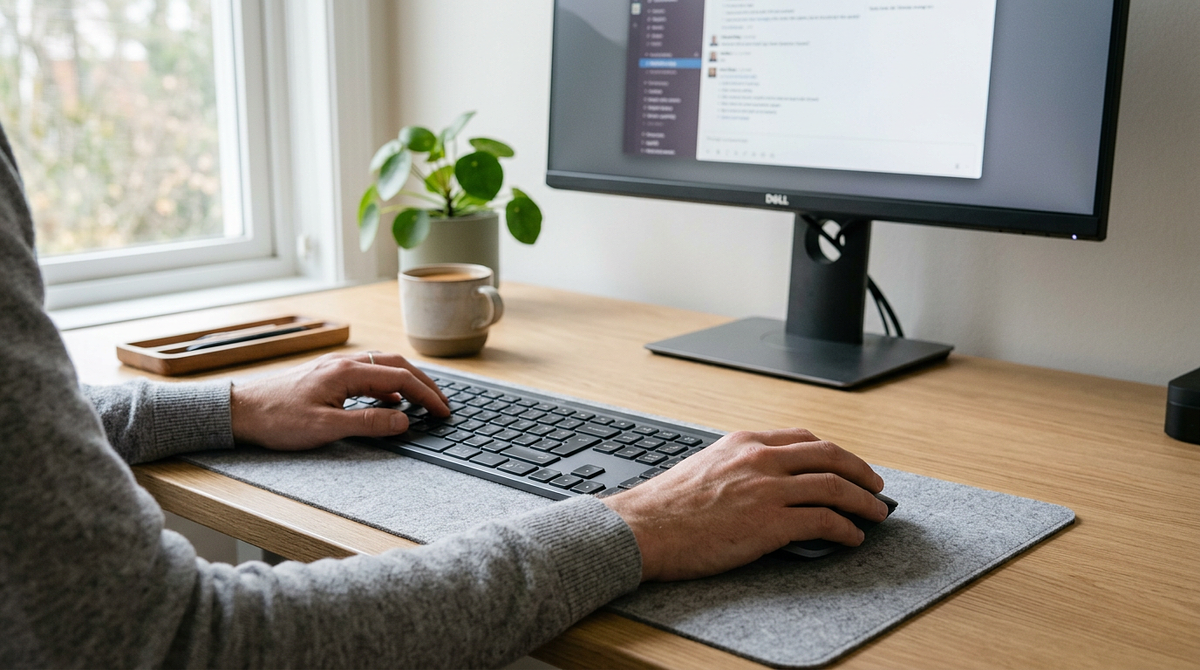
Setting up a keyboard and mouse means two things: getting your devices connected, and positioning them so you’re not wrecking your body over time. This guide covers all three connection types (USB, Bluetooth, and wireless receivers) across Windows, Mac, and Linux, plus ergonomic placement tips that take the strain off your wrists, shoulders, and neck. By the end, you’ll know how to connect any keyboard or mouse and set up your workspace so it’s actually comfortable to use long-term.
How to Connect Your Keyboard and Mouse
Before you worry about ergonomics, you need your devices actually working. There are three main connection types: USB wired, wireless with a USB receiver, and Bluetooth. Which one you have determines how you set it up.
Setting Up USB Wired Keyboards and Mice
Wired connections are the simplest option. No batteries, no pairing, no fuss:
- Find an open USB port on your computer. USB 2.0 and 3.0 ports both work fine for keyboards and mice, so any standard rectangular USB port will do.
- Plug the connector in until it clicks. Your computer should recognize the device automatically within 5-10 seconds.
- Let the operating system install the basic drivers in the background. Windows, Mac, and Linux all handle this on their own for standard devices. You don’t need to download anything or run an installer.
- Test it by typing a few characters or moving the mouse. That’s usually all it takes. You only need extra software if you want to customize programmable keys or adjust sensitivity settings.
If your computer is short on ports, a USB hub or docking station works fine for wired peripherals. The driver installation happens quietly in the background without interrupting anything.
Setting Up Wireless Keyboards and Mice with USB Receivers
Wireless USB receivers give you a reliable connection without the hassle of Bluetooth pairing:
- Find the USB receiver. It’s often stored in the battery compartment of the mouse, or attached to the packaging as a small dongle about the size of your thumbnail.
- Put batteries in the keyboard and mouse. Check the polarity markings (+ and -) inside the compartment so you don’t install them backwards.
- Plug the USB receiver into an open port on your computer. Most receivers have a small LED that lights up when they’re active.
- Turn on the keyboard and mouse using the power switch, usually on the bottom or side of each device. Look for a sliding switch or a button with a power symbol.
- Wait 10-15 seconds for the automatic pairing to finish. Most modern receivers pair on their own without you needing to press anything.
- Test both devices. If nothing happens after 20 seconds, press the small connect button on the receiver, then press the connect button on each device within 10 seconds.
Most 2.4GHz wireless receivers work up to 30 feet away and can often handle both the keyboard and mouse through a single receiver. If your devices are rechargeable, they may need to charge before first use, so check the manual if they won’t power on. Battery life is typically 6-12 months for keyboards and 3-6 months for mice with regular use. If you’re weighing whether to go wired or wireless for your mouse, our wired vs wireless gaming mouse performance comparison breaks down the latency, battery, and reliability differences in detail.
Setting Up Bluetooth Keyboards and Mice
Bluetooth cuts out the USB receiver entirely, but it takes a few more steps to get paired:
- Make sure your computer has Bluetooth. Most laptops have it built in. Desktop computers may need a USB Bluetooth adapter if it’s not already on the motherboard.
- Put in batteries or fully charge the device before you start pairing. Low battery during the initial pairing process can cause it to fail.
- Turn on Bluetooth on your computer. On Windows, go to Settings > Bluetooth & devices. On Mac, go to System Preferences > Bluetooth. On Linux, go to Settings > Bluetooth.
- Turn on the keyboard or mouse and activate pairing mode by holding the Bluetooth button until the LED starts flashing quickly. The button is usually marked with the Bluetooth symbol.
- On your computer, click “Add device” or “Pair new device” and wait for the keyboard or mouse name to show up in the list. This usually takes 5-15 seconds.
- Select the device from the list. Some keyboards will ask you to type a PIN code shown on your screen, then press Enter to finish pairing.
- Wait for the “Connected” status to appear in your Bluetooth settings, then test the device.
Pairing mode usually times out after 2-3 minutes, so move through the steps without too much delay. Many modern devices support multi-device pairing, so you can switch between computers with a button press. Bluetooth 4.0 or higher is more battery-efficient than older versions. If the device doesn’t show up in your available devices list, try toggling Bluetooth off and back on, or restart your computer to refresh the connection.
| Connection Type | Setup Difficulty | Range | Battery Life | Multi-Device Support | Best For |
|---|---|---|---|---|---|
| USB Wired | Easiest | Cable length only | N/A (powered by USB) | No | Desktops, gaming, zero-latency needs |
| Wireless USB Receiver | Easy | Up to 30 feet | 6-12 months | Limited (some models) | General use, minimal setup |
| Bluetooth | Moderate | Up to 30 feet | 3-12 months | Yes (most models) | Laptops, multi-device workflows, portability |
Each connection type has its strengths. USB wired is the most reliable with no battery concerns. Wireless gives you more flexibility and a cleaner desk. Think about how you work and what your devices support before you decide.
Ergonomic Keyboard and Mouse Positioning
Getting your positioning right prevents repetitive strain injuries and cuts down on fatigue during long sessions at the computer. Poor ergonomics can lead to carpal tunnel syndrome, neck pain, and shoulder tension that builds up slowly over months or years. These guidelines apply whether you’re working in an office or gaming at home.
Keyboard Height and Positioning
Where you place your keyboard directly affects your wrist angle and shoulder position throughout the day:
- Elbow height: Set your keyboard so your elbows are at a 90-100 degree angle when your hands are on the home row keys. This keeps your shoulders relaxed and reduces upper back strain from reaching up or down.
- Flat or negative tilt: Don’t use the keyboard feet that prop up the back edge. That forces your wrists to bend upward and puts more pressure on the carpal tunnel. Keep the keyboard flat, or use a negative tilt tray that angles it slightly downward away from you.
- Centered placement: Put the keyboard directly in front of you with the “B” key lined up with the center of your body. This prevents twisting and uneven posture during long typing sessions.
- Distance from the desk edge: Leave 4-6 inches between the keyboard and the edge of your desk so your wrists have somewhere to rest. Your forearms should sit comfortably on the desk without reaching forward.
- Wrist position: Keep your wrists neutral, meaning your hand forms a straight line with your forearm. If your wrists bend upward, lower your chair or raise your desk. If they bend downward, do the opposite.
If your desk height can’t be adjusted to get your elbows at the right angle, a keyboard tray mounted under the desk is a good fix. This is often needed with standard 29-30 inch desks, which position keyboards too high for most people.
Mouse Placement and Technique
Mouse positioning affects your shoulder, elbow, and wrist across thousands of small movements every day:
- Keep it close to the keyboard: Place your mouse right next to your keyboard, within about 6 inches, at the same height. Reaching forward or out to the side strains your shoulder and pulls you out of a neutral posture.
- Same surface level: The mouse needs to sit on the same plane as your keyboard. If it’s higher or lower, you’ll end up with awkward arm angles and wrist deviation.
- Support your forearm: Your whole forearm from elbow to wrist should rest on the desk while you use the mouse. Letting your forearm hang unsupported leads to shoulder fatigue and less precise movement.
- Light grip: Rest your palm on the mouse body with your fingers curved naturally over the buttons. Gripping too hard or using just your fingertips increases muscle tension.
- Move from the elbow: Use your whole arm from the elbow to move the mouse, not just your wrist. This spreads the work across larger muscle groups and reduces wrist strain.
If you’re getting wrist discomfort, look into a vertical or ergonomic mouse. These put your hand in a “handshake” position that reduces forearm rotation and the muscle tension that comes with it. Using a proper surface under your mouse also makes a real difference — see our desk mat vs mouse pad comparison to find the right workspace surface for your setup.
Monitor Height and Viewing Distance
Monitor placement is the last piece of the ergonomic puzzle. Get it right and your head and neck stay in a comfortable, neutral position:
- Eye-level positioning: The top of your monitor should sit at or just below eye level when you’re sitting up straight. Looking upward strains your neck and tires your eyes.
- Viewing distance: Put your monitor 20-26 inches from your eyes, roughly arm’s length. Too close and your eyes fatigue faster. Too far and you’ll start leaning forward, which breaks your posture.
- Screen angle: Tilt the monitor back 10-20 degrees so the screen is roughly perpendicular to your line of sight. This cuts down on glare and keeps the viewing distance consistent across the whole screen.
- Centered alignment: Put your primary monitor directly behind your keyboard so you’re not rotating your neck. For dual-monitor setups, angle both screens inward in a slight “V” shape with the main monitor centered.
- Height adjustment: Use a monitor arm, a stand, or even stacked books to get the right height. Most monitors sit too low on standard desks. When you look straight ahead, your eyes should naturally land on the top third of the screen.
If you use a laptop, get an external keyboard and mouse so you can raise the laptop screen to eye level on a stand. When the screen is low enough to type on, you end up looking down constantly, which strains your neck over time.
Complete Workstation Setup Checklist
Run through this list to make sure your whole workspace is set up correctly:
- Chair height adjusted so feet rest flat on the floor with thighs parallel to the ground
- Keyboard positioned at elbow height with arms at 90-100 degree angles
- Mouse placed immediately beside the keyboard at the same height
- Monitor top at or slightly below eye level, 20-26 inches away
- Wrists in a neutral position (straight line from forearm to hand)
- Lower back supported by the chair’s lumbar support
- Shoulders relaxed and not elevated or hunched forward
Troubleshooting Common Setup Issues
Setup problems are common and usually easy to fix. Most of the time it’s a power, connection, or pairing issue, not a broken device.
Device Not Responding After Connection
Work through these steps in order when your keyboard or mouse isn’t responding:
- Check the power source. Make sure batteries are installed with the correct polarity, or that rechargeable devices are charged. Try fresh batteries if you have them, to rule out dead cells.
- Check the physical connection. Make sure USB receivers or cables are fully plugged in. Try a different USB port, especially if you’re using a front panel port, which can sometimes have a loose connection.
- Confirm the device is on. Look for LED indicators showing it’s powered. Press the power button again to make sure it’s not in sleep mode.
- Re-establish pairing for wireless devices. Press the connect button on both the receiver and the device. For Bluetooth, remove the device from your Bluetooth list and pair it again from scratch.
- Restart your computer. A lot of connection issues clear up after a restart that reloads the device drivers and clears temporary software conflicts.
- Update drivers. Check for operating system updates or visit the manufacturer’s website for the latest driver software. This is rarely needed for basic functionality, but it’s worth trying if nothing else works.
Intermittent Connection or Lag
Spotty connectivity usually comes down to interference or power issues:
- Wireless interference: Move the USB receiver away from routers, phones, and metal objects that can block the signal. If your computer sits under a desk, use a USB extension cable to bring the receiver closer to your keyboard and mouse.
- Low battery: Replace the batteries even if they seem like they have some life left. Weak batteries cause intermittent drops before they die completely, and the battery indicators on most devices aren’t very accurate.
- Distance issues: Stay within the device’s specified range, typically 30 feet. Walls and other obstacles cut that range down significantly.
- Bluetooth conflicts: Temporarily disconnect other Bluetooth devices to see if that’s causing the problem. Some computers, especially older ones, struggle with multiple Bluetooth connections running at the same time.
- Surface problems: For optical mice, use a mouse pad or a non-reflective surface. Glass, glossy, or transparent surfaces throw off the optical sensor and cause erratic tracking.
Multi-Device Setup Issues
Many modern keyboards and mice can connect to multiple computers, but switching between them requires knowing how your specific model handles it.
- Check your device manual to confirm multi-device support. It’s usually shown as numbered buttons or switches on the device labeled 1, 2, or 3.
- Pair the keyboard and mouse to each computer separately using the channel selection button. Each channel stores its own pairing profile.
- Switch between computers by pressing the channel button. The device will reconnect to the paired computer on that channel within 2-3 seconds.
- Note that some devices need a brief pairing mode activation when switching to a new channel for the first time. Keep the pairing instructions nearby during the initial setup.
Maintaining Ergonomic Keyboard and Mouse Setup for Productivity
Getting your keyboard and mouse set up correctly isn’t something you do once and forget. Your body’s needs shift throughout the day as you get tired and your posture drifts. Check your positioning every few weeks and make small adjustments to chair height, monitor distance, or keyboard angle based on where you’re feeling discomfort.
Start with the ergonomic guidelines in this article, then pay attention to how you feel during long work sessions. Small tweaks to your workspace can head off chronic pain that builds up gradually from months of poor positioning. For a deeper look at how to build a workspace that supports long sessions, our ergonomic gaming setup guide covers monitor positioning, desk height, chair adjustments, and equipment recommendations in detail.
Frequently Asked Questions
Can I use the same keyboard and mouse setup across multiple devices (work/personal computer)?
Yes. Many modern wireless keyboards and mice support multi-device pairing with dedicated channel buttons that let you switch between 2-3 computers instantly. Check your device specs for “multi-device” or “multi-host” support, then pair each computer to a separate channel following the manufacturer’s instructions.
Do wireless keyboards and mice have noticeable input lag compared to wired connections?
Modern 2.4GHz wireless and Bluetooth 5.0+ connections have latency around 1-2ms, which is imperceptible for typical office work and casual use. Competitive gamers may prefer wired for the absolute lowest latency, but most people won’t notice any difference in responsiveness.
How often should I replace batteries in wireless keyboards and mice?
Keyboards typically last 6-12 months on a single set of batteries with regular use. Mice use more power and usually need new batteries every 3-6 months. Battery life varies based on how heavily you use the devices, the quality of the batteries, and whether the device has power-saving features like auto-sleep.
Can I use a keyboard and mouse from one brand with a computer from another brand?
Yes. Keyboards and mice work across brands and operating systems without any issues. A Logitech keyboard works fine with a Dell computer, and vice versa. The only limitation is that brand-specific software for programmable keys or RGB lighting may not be available for every operating system.
What’s the difference between membrane and mechanical keyboards for ergonomic setup?
The key type affects how typing feels and how much force you need, but it doesn’t change the ergonomic positioning principles. Both require the same neutral wrist posture and proper desk height. Mechanical keyboards often need less finger force and give better tactile feedback, which some people find reduces typing fatigue during long sessions. If you’re considering switching to a mechanical keyboard, our guide to mechanical keyboard switch types and layouts explains the differences between switch options and what to look for when choosing one.
Should I use a wrist rest with my keyboard and mouse?
Wrist rests work best as a place to pause between keystrokes, not as a platform for active typing or mousing. Keeping your wrists slightly lifted while you type reduces pressure on the carpal tunnel, with the rest there to catch you in between. If you’re still working out the right ergonomic setup, a dedicated ergonomics guide can help you dial in the details.