
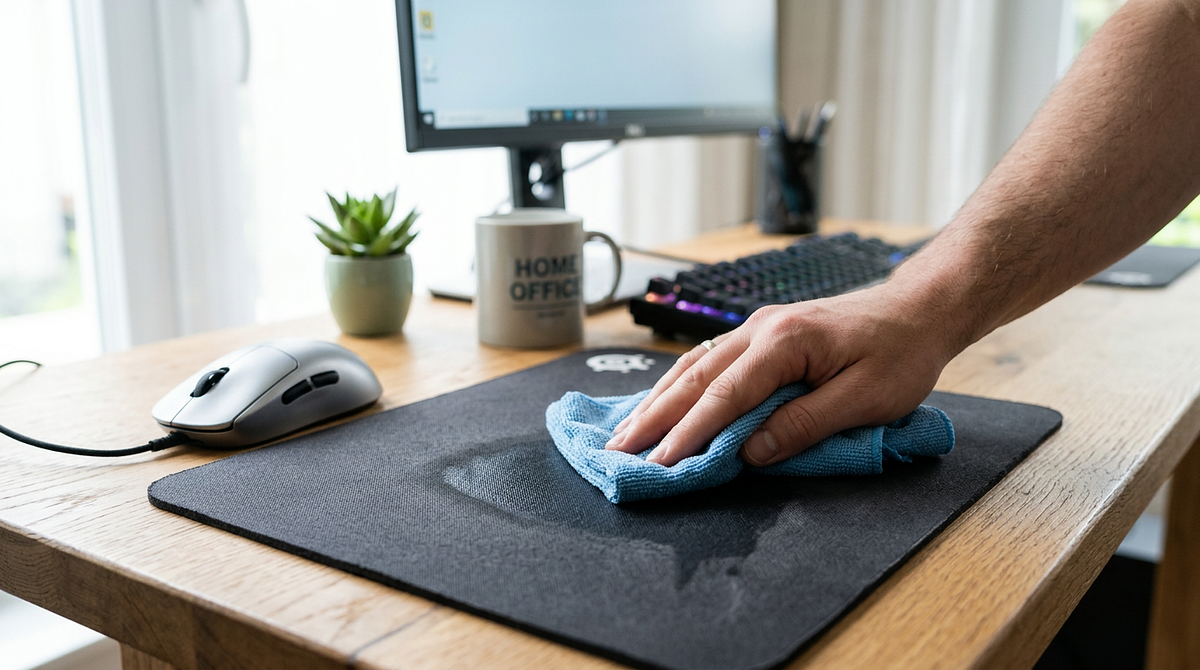
How you clean a mouse pad depends on what it’s made of, and using the wrong method can damage the surface or ruin built-in electronics. This guide covers cleaning instructions for cloth, hard plastic, RGB, and specialty mouse pads, including which products to use, how to handle stains, and how long each type takes to dry. By the end, you’ll know the right approach for your specific pad and how to clean it safely.
Identifying Your Mouse Pad Type Before Cleaning
Before you clean anything, figure out what your mouse pad is made of. Water that’s perfectly safe for a cloth pad can ruin a hard surface or fry electronic components. Most mouse pads fall into four main categories, and each one needs to be handled differently.
Cloth and fabric mouse pads (polyester, nylon, microfiber) are the most common type and can handle water-based cleaning when you do it right. These pads have a fabric top layer bonded to a rubber or foam base with adhesive. The fabric weave traps dirt, oils, and debris deep in the fibers, so they can handle soaking and scrubbing.
Hard surface mouse pads (plastic, aluminum, glass, polycarbonate) have smooth, non-porous surfaces that don’t absorb moisture but scratch easily. Many have printed designs or special coatings that harsh cleaners will damage. These need minimal water and gentle wiping, not soaking. If you’re unsure which surface type suits your gaming style, understanding the differences between hard and soft mouse pads can help you make a more informed decision.
RGB and LED mouse pads have electronic components, LED strips, and USB connections that water can permanently destroy. The fabric surface may look just like a standard cloth pad, but the embedded electronics change everything about how you can safely clean them. If your pad has a USB cable or wireless charging module, it’s in this category.
Specialty mouse pads (leather, wood, cork, gel-filled) use materials that react badly to moisture or need specific care products. Leather dries out and cracks if you clean it wrong. Wood warps when it gets wet. Cork absorbs moisture and swells.
Check the underside of your mouse pad for manufacturer labels that list the material or cleaning instructions. If you’re not sure, start with the gentlest method and test a small, hidden area before cleaning the whole surface.
Cleaning Cloth and Fabric Mouse Pads Step-by-Step
Cloth mouse pads pick up oils, sweat, and debris over time, and a periodic deep clean gets all of that out of the fabric weave. This method works for standard gaming mouse pads, desk mats, and any fabric-topped pad without electronic components.
Materials You’ll Need
- Lukewarm water (maximum 30°C/86°F)
- Mild dish soap or hand soap
- Soft-bristled brush or clean microfiber cloth
- Clean towels for drying
- Sink, bathtub, or large basin
Cleaning Process
Step 1: Remove loose debris. Use a soft-bristled brush or a vacuum with a brush attachment to clear off surface dust, hair, and particles before you add any water. This keeps dirt from turning into mud during washing and means less scrubbing later.
Step 2: Prepare cleaning solution. Fill a sink or bathtub with lukewarm water and add 2-3 drops of mild dish soap. The water should feel slightly warm, not hot. Temperatures above 30°C weaken the adhesive that bonds the fabric to the rubber base.
Step 3: Soak and scrub. Submerge the mouse pad completely and let it soak for 5-10 minutes to loosen embedded dirt. Gently scrub the surface in circular motions using your hands, a microfiber cloth, or a soft brush. Focus on visibly stained areas or spots where your hand rests most often. Don’t scrub aggressively, as that can damage the fabric weave or cause the layers to separate.
Step 4: Rinse thoroughly. Rinse the pad under cool running water for 2-3 minutes until all the soap is gone. Soap left behind creates sticky spots that attract dirt and mess with mouse tracking. Flip the pad a few times while rinsing to flush soap from both sides.
Step 5: Remove excess water. Press the pad between clean towels to absorb moisture. Never wring or twist it. That pulls the fabric away from the rubber base and causes permanent warping. Apply firm, even pressure across the whole surface instead.
Step 6: Air dry completely. Lay the pad flat on a clean surface in a well-ventilated area, away from direct sunlight and heat sources. Put a fan nearby to improve airflow if you have one. Drying takes 12-24 hours depending on humidity and pad thickness. The pad needs to feel completely dry before you use it. Any leftover moisture can cause mildew.
Cleaning Hard Surface Mouse Pads Safely
Hard mouse pads made from plastic, aluminum, or glass need minimal water exposure. Too much moisture can damage surface coatings or seep into edges and break down the adhesive. These pads clean up quickly with spot treatment rather than soaking.
Dust removal: Start by wiping the surface with a dry microfiber cloth to remove loose particles that could scratch during wet cleaning. Pay attention to the edges where dust tends to collect.
Spot cleaning: Dampen a microfiber cloth with water and add one drop of mild soap for stubborn spots. Wipe the surface in gentle circular motions with light pressure. For glass mouse pads, streak-free glass cleaner on a microfiber cloth works well, unless the manufacturer says it’s not compatible with the coating.
Immediate drying: Use a clean, dry microfiber cloth to remove all moisture right away. Don’t let water sit on hard surfaces or pool at the edges, where it can seep underneath and damage the adhesive bond to the rubber backing.
Hard surface mouse pads are ready to use as soon as you’ve dried them with a cloth. Skip abrasive cleaners, rough sponges, and paper towels. All of those can scratch protective coatings or anodized finishes on metal pads.
How to Clean RGB and LED Mouse Pads Without Damage
RGB mouse pads with built-in lighting need extra care to protect the electronic components, USB connections, and LED circuits. The fabric surface may look identical to a standard cloth pad, but the embedded electronics change everything about safe cleaning.
Critical Safety Protocol
Disconnect power completely: Unplug the USB cable and remove any wireless charging modules before you start. Never clean an RGB mouse pad while it’s connected to power.
Identify electronic zones: Find where the components are housed, usually along the edges or in corners. Those areas need to stay completely dry.
Surface-only cleaning: Dampen a microfiber cloth with water and one drop of mild soap, then wring it out until it’s barely damp. Wipe only the fabric surface, staying away from any areas near electronic components or USB ports. Apply the cleaning solution to the cloth, never directly to the pad.
Spot treatment for stains: For stubborn spots, gently dab the area with your barely damp cloth. Don’t scrub hard or let moisture soak through the fabric layers.
Extended drying time: Wait 48-72 hours before reconnecting power. That extra time accounts for any moisture that may have gotten near the electronic components. Put the pad in a well-ventilated area with a fan to speed up drying.
Never submerge, soak, or machine wash RGB mouse pads. Water in the circuits causes permanent damage and voids warranties. If your RGB pad is too dirty for surface wiping to fix, contact the manufacturer for guidance rather than risking water damage.
Removing Stubborn Stains from Mouse Pads
Different stains respond to different treatments. Matching the method to the stain type gets better results without damaging your pad.
Grease and Oil Stains
Apply a small amount of dish soap directly to the stain and let it sit for 3-5 minutes to break down the oils. Scrub gently with a soft brush in circular motions, then rinse thoroughly with lukewarm water. Dish soap is formulated to cut through grease without harsh chemicals, which makes it a good fit here.
Coffee and Beverage Spills
Blot immediately with a clean cloth to absorb as much liquid as possible before it sets into the fabric. For dried coffee stains, mix equal parts white vinegar and water, apply with a cloth, and let it sit for 2-3 minutes before rinsing completely. The acidity in vinegar breaks down the tannins in coffee without bleaching the fabric.
Sweat and Body Oil Buildup
Mix 1 tablespoon of baking soda into 2 cups of lukewarm water. Apply with a microfiber cloth, focusing on discolored areas where your hand rests. Rinse thoroughly to remove all the baking soda, since any residue left behind will feel gritty. This works especially well on white mouse pads that have started to yellow.
Ink and Marker Stains
Dab (don’t rub) with rubbing alcohol on a cotton ball for cloth pads only. Test a hidden area first to check for color bleeding. Never use alcohol on leather, coated, or RGB mouse pads, as it damages those materials and electronics.
Common Cleaning Mistakes That Damage Mouse Pads
These are the mistakes most likely to cause permanent damage, and most of them are easy to avoid once you know what to watch for.
Using hot water: Temperatures above 30°C (86°F) weaken the adhesive that bonds the fabric to the rubber base, which leads to separation, bubbling, and warping. Hot water also damages surface coatings on hard mouse pads. Stick to lukewarm water that feels slightly warm to the touch.
Machine washing or using a dryer: The agitation and spin cycle in a washing machine can separate the fabric layers from the rubber backing and destroy stitched edges. Dryer heat causes warping, shrinking, and complete adhesive failure. Hand washing is the only safe method for cloth pads.
Applying harsh chemicals: Bleach, ammonia-based cleaners, acetone, and strong solvents damage fabric dyes, degrade rubber, and strip protective coatings. They can also cause discoloration and material breakdown. Mild dish soap or hand soap is all you need.
Wringing or twisting to remove water: Twisting creates stress points that separate layers and cause permanent warping. The force pulls fabric away from the adhesive and creates bubbles or ripples that won’t flatten out. Press the pad between towels instead.
Drying in direct sunlight or near heat sources: UV exposure fades colors and degrades materials over time. Heat from radiators, hair dryers, or direct sunlight causes warping and adhesive failure. Always air dry in a shaded, well-ventilated area at room temperature.
Submerging RGB or electronic mouse pads: Water in the electronic components, USB ports, or LED circuits causes permanent damage and electrical shorts. Even small amounts of moisture can corrode connections and destroy circuits. Surface wiping only is safe for these pads.
How Often to Clean Your Mouse Pad Based on Usage
How often you clean your mouse pad should match how hard you use it. Cleaning too rarely lets grime build up and hurt performance. Cleaning too often causes premature wear.
| Usage Type | Deep Clean Frequency | Quick Maintenance |
|---|---|---|
| Heavy gaming (4+ hours daily) | Every 2-3 weeks | Daily wipe with dry cloth |
| Office/professional (8+ hours daily) | Every 3-4 weeks | Every 2-3 days |
| Casual/light use (1-2 hours daily) | Every 6-8 weeks | Weekly wipe |
| RGB/electronic pads (any usage) | Every 8-12 weeks maximum | Every 1-2 weeks (surface only) |
Signs Your Mouse Pad Needs Immediate Cleaning
- Visible stains, spills, or discoloration on the surface
- Sticky or tacky feeling when moving your hand across the pad
- Noticeable odor when leaning close to the pad
- Mouse cursor skipping or tracking inconsistently
- Surface appears darker or duller than when new
- Visible dust accumulation in fabric weave
Preventive Maintenance Tips
A few simple daily habits can stretch the time between deep cleans and keep your pad in better shape overall. Keep food and open drinks away from your mouse pad to prevent spills. Wash your hands before long computer sessions to cut down on oil transfer to the pad surface. Use a desk mat under your mouse pad to catch dust and debris before they reach the pad. If you’re considering upgrading your workspace surface, comparing desk mats and mouse pads can help you decide which option better fits your setup. Store mouse pads flat when not in use to prevent the edges from curling. For large desk-sized mouse pads, rotate them monthly to spread wear evenly across the surface.
Fixing Post-Cleaning Problems with Mouse Pads
If something goes wrong after cleaning, here’s what’s likely causing it and how to fix it.
Mouse pad smells musty after cleaning: The pad didn’t dry fully, and mildew grew in the fabric layers. Rewash it, then dry in a well-ventilated area with a fan pointed at it. In humid climates, place it near a dehumidifier. The pad needs at least 24 hours to dry completely before use.
Mouse pad warped or curled at edges: Hot water or heat drying damaged the adhesive layer, causing uneven shrinkage. Place the pad under heavy books for 24-48 hours to flatten it. For bad warping, lightly dampen the pad, place it between towels under weight, and let it dry flat. To avoid this in the future, use only lukewarm water and air dry flat away from heat.
Surface feels sticky or rough after cleaning: Soap residue is still on the pad, or hard water minerals have deposited on the surface. Rinse the pad again under running water for 2-3 minutes until all the soap is gone. For hard water deposits, wipe with a cloth dampened with distilled white vinegar, then rinse with distilled water if you have it.
Mouse tracking feels slower or inconsistent: The fabric fibers matted down during aggressive scrubbing, or the surface coating was damaged. For cloth pads, gently brush the surface with a soft-bristled brush to lift the fibers back up. If the coating on a hard pad was damaged, that may be permanent, which is why gentle cleaning methods matter. The surface texture of your pad also plays a role in tracking performance — understanding the difference between speed and control mousepads explains how friction affects mouse movement and accuracy.
Material-Specific Cleaning Preserves Mouse Pad Performance
Matching your cleaning method to your mouse pad’s material prevents damage and keeps tracking performance where it should be. The water temperature, how you dry the pad, and which cleaning products you use matter more than how often you clean. RGB pads need surface-only treatment to protect the electronics. Cloth pads can handle soaking when you do it correctly. Hard surfaces need minimal moisture. Start by figuring out what type of pad you have, then follow the right method above to get a clean pad that lasts.
Frequently Asked Questions About Cleaning Mouse Pads
Can I use rubbing alcohol to clean my mouse pad?
Avoid alcohol on cloth and leather mouse pads. It dries out materials and damages surface coatings. It can work for spot-treating ink stains on basic cloth pads if you test a hidden area first, but it’s not a good general cleaner and shouldn’t be used on RGB, coated, or specialty pads.
How do I know when my mouse pad is completely dry?
Press a clean, dry cloth firmly against the pad’s surface and edges. If any moisture transfers to the cloth, or the pad feels cool to the touch, it needs more time. The pad should feel room temperature and completely dry before you use it, to prevent mildew growth.
Why does my mouse pad curl after washing?
Hot water or heat drying damaged the adhesive layer bonding the fabric to the rubber, which caused uneven shrinkage. Flatten the pad under heavy books for 24-48 hours. For future cleanings, use only lukewarm water (maximum 30°C/86°F) and air dry flat away from heat sources.
Can I speed up drying time safely?
Point a fan at the pad’s surface, or place it near a dehumidifier in humid environments. Both improve airflow without adding heat. Don’t use hair dryers, radiators, or direct sunlight. Heat causes warping and adhesive damage.
What’s the fastest way to clean a mouse pad if I need it immediately?
Spot clean only the affected area with a barely damp cloth and mild soap, then dry it thoroughly with a clean towel. This takes 5-10 minutes compared to 12-24 hours for a full wash. For hard surface pads, this method works for the entire surface since they dry right away.
Can you wash a mousepad in the washing machine?
Machine washing isn’t worth the risk. The agitation and spin cycle can separate the fabric from the rubber backing and destroy stitched edges, leaving you with a warped, unusable pad. Hand washing is the only safe route for a deep clean. If your mousepad is already past saving, browsing some well-reviewed replacements might be the smarter next step.