
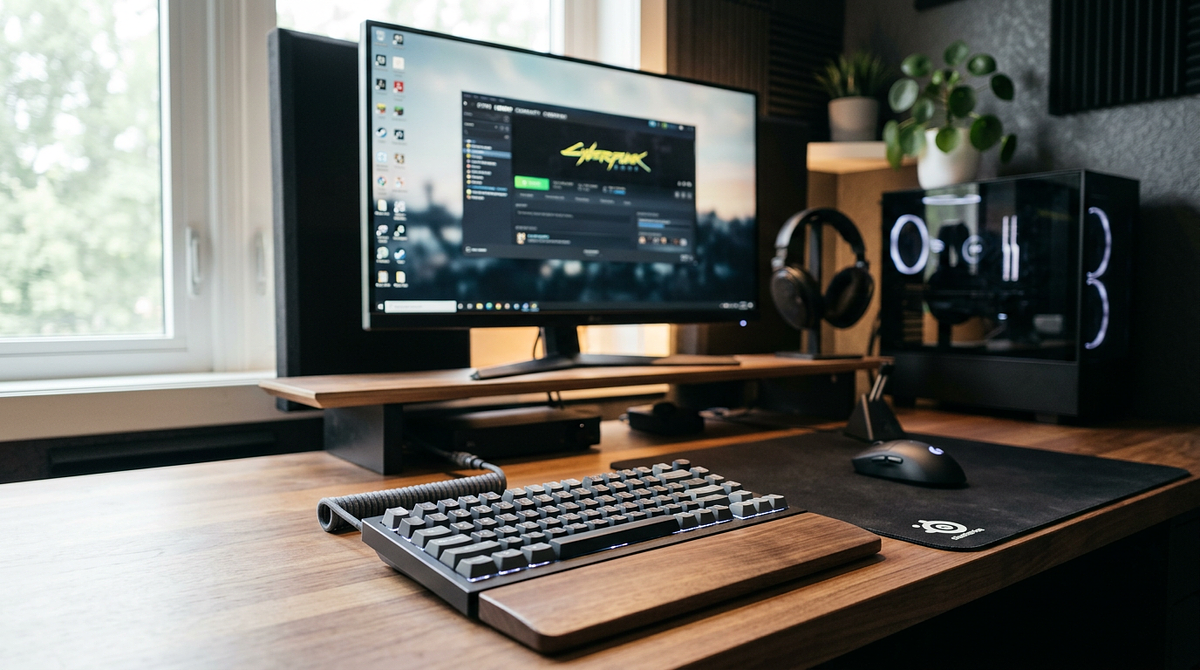
Gaming setup accessories range from peripherals that directly affect how you play to comfort-focused additions that help you game longer without wearing out. This guide breaks down the most useful accessories across different budget levels, with recommendations based on gaming style and desk space. By the end, you’ll know which accessories to buy first and how to build or upgrade your setup without overspending on branding or features you don’t need.
Essential Gaming Setup Accessories by Budget Tier
Before spending money on gaming accessories, separate the performance upgrades from the aesthetic ones, then match them to what you can actually afford. The tiers below organize accessories by their impact on gameplay, comfort, and setup function rather than marketing hype or looks. Each tier builds on the last, so you can start with the basics and add more as your budget grows.
The Essential tier covers peripherals that directly affect input precision, visual clarity, and audio communication. The Intermediate tier adds comfort and organization for longer sessions. The Premium tier covers specialized use cases like streaming, content creation, or multi-monitor competitive setups.
Essential Tier: Core Performance Accessories (Under $100)
These five accessories form the foundation of any functional gaming setup. They give you the best performance for your money across all gaming styles. Get these before you think about anything aesthetic or convenience-focused.
| Accessory Category | Performance Impact | Typical Price Range | Priority for Gaming Styles |
|---|---|---|---|
| Large Mousepad (Extended Desk Mat) | Enables consistent low-sensitivity aiming; protects desk surface | $15-$35 | Critical for FPS/competitive; useful for all styles |
| Quality Gaming Mouse | Direct input precision; reduces latency and improves tracking accuracy | $30-$60 | Universal — affects all game types equally |
| Mechanical Keyboard | Faster actuation; tactile feedback improves input timing | $50-$80 | High priority for competitive/MMO; moderate for casual |
| Wired Gaming Headset | Directional audio for competitive advantage; team communication | $40-$70 | Critical for team-based games; moderate for single-player |
| Monitor Upgrade (1080p 144Hz minimum) | Reduces input lag; enables smoother motion tracking | $150-$200 | Critical for competitive FPS; moderate for strategy/RPG |
Budget Allocation Strategy: If you’re starting from zero with $100, buy in this order: mousepad ($20), mouse ($40), headset ($40). Add a keyboard and monitor as your next upgrades when your total budget reaches $250-$300.
Intermediate Tier: Comfort and Organization ($100-$300)
Once your core peripherals are sorted, these accessories tackle ergonomics, cable management, and comfort for longer sessions. They won’t directly improve your gameplay, but they reduce fatigue and help you stay focused over time.
- Ergonomic Chair or Seat Cushion ($80-$150): Proper lumbar support prevents back pain during 2+ hour sessions; look for adjustable armrests to position your mouse arm correctly
- Monitor Arm/Mount ($30-$80): Frees up desk space; lets you adjust height and angle to reduce neck strain; necessary for dual-monitor setups
- Cable Management System ($15-$30): Includes cable sleeves, clips, and under-desk trays; keeps cables from tangling and makes your desk look cleaner
- Desk Lamp or Monitor Light Bar ($25-$60): Reduces eye strain from screen-only lighting; monitor light bars cut desk shadows without adding glare to your screen
- Headphone Stand with USB Hub ($20-$40): Keeps your headset within reach; built-in USB ports add convenient peripheral connectivity
Space-Constrained Setup Considerations: For small desks (under 48″ wide) or desks that double as workstations, get a monitor arm and cable management first. These create usable space rather than eating it up. Skip RGB lighting and decorative accessories until you have room for them.
Premium Tier: Specialized Performance and Streaming ($300+)
Premium accessories are for specific situations: high-level competitive play, streaming, content creation, or multi-monitor productivity. Only spend here after you’ve covered the Essential and Intermediate tiers.
- High-Refresh Monitor (240Hz+) or Ultrawide Display ($300-$600): 240Hz helps competitive FPS players with sub-10ms reaction times; ultrawide (21:9) suits immersive single-player games and productivity work
- Standalone Microphone with Boom Arm ($100-$200): Dramatically improves voice clarity for streaming; not needed for casual team chat where a headset mic is fine
- Mechanical Keyboard (Premium Switches/Custom) ($150-$300): Offers switch customization and better build quality than budget boards, though the performance gain over an $80 keyboard is small
- Wireless Gaming Mouse (High-End) ($100-$150): Removes cable drag with latency that matches wired performance; only worth it for competitive players or setups where cables are a real problem
- Stream Deck or Macro Pad ($80-$150): Programmable keys for streaming controls or MMO macros; limited use outside content creation
Upgrade Path Logic: Premium accessories should fix a specific problem in your current setup, not just be nice to have. If you’re not streaming, skip the standalone mic. If you’re not playing competitive FPS at a high level, a 144Hz monitor gives you 90% of the benefit at half the cost of a 240Hz display.
Performance vs. Aesthetic Accessories: What Actually Improves Gameplay
The gaming accessory market deliberately blurs the line between functional upgrades and decorative ones, often pricing aesthetic features at the same level as performance gear. Knowing which accessories actually improve your gameplay versus which ones just look good will save you from wasting money on RGB lighting and “gaming” branded products that don’t perform any better than cheaper alternatives.
Performance accessories directly affect three measurable things: input precision (mouse, keyboard, mousepad), visual clarity and responsiveness (monitor, lighting), and audio positioning (headset, speakers). Aesthetic accessories improve how your setup looks or feels to be around, but they don’t affect your win rate, reaction time, or competitive results.
Performance-Critical Accessories (Measurable Impact)
These accessories directly affect gameplay through reduced latency, better precision, or clearer information. Get these before any aesthetic upgrades.
Input Peripherals:
- Gaming Mouse (Quality Sensor): Affects tracking accuracy, click latency, and consistent aim. You can measure this through DPI accuracy tests and polling rate (1000Hz minimum)
- Large Mousepad: Lets you aim at low sensitivity with consistent surface friction; prevents sensor tracking errors that come from uneven desk surfaces
- Mechanical Keyboard: Shorter actuation distance (2mm vs. 4mm on membrane) and tactile feedback lead to faster, more accurate inputs in timing-sensitive games. If you want to understand how switch types affect your gaming performance, our guide to mechanical keyboard switch types, layouts, and terminology covers everything you need to compare options.
Visual and Audio:
- High-Refresh Monitor (144Hz+): Reduces motion blur and input lag; competitive FPS players gain a 10-15ms advantage over 60Hz displays when acquiring targets
- Quality Headset with Positional Audio: Lets you hear directional sound cues like footsteps and gunfire, which matters a lot in competitive team-based shooters
- Monitor Light Bar: Reduces eye strain from screen-only lighting without adding glare; helps you stay focused during long sessions
Performance Validation: If an accessory’s benefit can’t be measured through frame rates, input latency, or competitive results, it’s aesthetic. RGB mousepad lighting doesn’t improve tracking. The mousepad surface does.
Aesthetic Accessories (Visual/Comfort Improvements)
These accessories make your setup look better or feel more enjoyable, but they don’t directly affect gameplay. Budget for these after the performance-critical stuff is covered.
- RGB Lighting (LED Strips, Smart Bulbs): Creates ambiance and looks great for streaming or photos; zero gameplay impact
- Custom Keycaps or Cable Sleeves: Personalizes your setup’s appearance; doesn’t change how the keyboard performs
- Desk Organizers and Figurines: Improves visual organization and personal expression; purely decorative
- Gaming Chair (Beyond Ergonomic Function): Premium racing-style chairs often cost $300+ for branding and looks; a $150 ergonomic office chair gives you the same lumbar support
- Wireless Charging Mousepad: A convenient feature for compatible mice, but it doesn’t improve tracking or performance over a standard pad
Budget Allocation Principle: Put 80% of your accessory budget toward performance-critical items and 20% toward aesthetics. With a $400 total budget, spend $320 on a mouse, keyboard, mousepad, and headset before putting $80 toward RGB lighting or decorative pieces.
The “Gaming” Branding Tax: When to Avoid Marketed Products
Products marketed as “gaming” accessories often cost 30-50% more than functionally identical alternatives from professional audio, office ergonomics, or general electronics brands. This is most common with headsets, chairs, and cables.
Categories Where “Gaming” Branding Adds Cost Without Value:
- Headsets: An $80 “gaming” headset often uses $30 driver quality. A $60 pair of studio headphones (Sennheiser, Audio-Technica) sounds better, and you can add a $15 standalone mic
- Chairs: A $400 gaming chair gives you the same ergonomics as a $200 office chair (or a used Herman Miller or Steelcase). The extra cost goes to looks and branding
- Cables and Adapters: “Gaming-grade” HDMI and USB cables perform the same as standard certified cables at a third of the price. Cable quality matters; branding doesn’t
When Gaming Branding Justifies Cost:
- Mice and Keyboards: Gaming-specific sensors (PixArt 3390+) and mechanical switches (Cherry MX, Gateron) genuinely outperform office peripherals. Here, the branding actually reflects better performance
- Monitors: High-refresh panels (144Hz+) and low-latency processing are gaming-specific features you won’t find in standard displays. The premium is justified
Validation Test: Before buying any “gaming” branded accessory, look for professional or prosumer alternatives in the same category. If a $100 gaming headset competes with $60 studio headphones, you’re paying a $40 branding tax.
Gaming Style-Specific Accessory Priorities
Different gaming genres create different accessory needs that shift where your money should go. A competitive FPS player’s ideal setup looks nothing like an MMO player’s or a casual single-player gamer’s. Matching accessories to how you actually play keeps you from spending on upgrades that won’t help you while making sure the right performance tools are in place.
The breakdown below segments accessories by gaming style and shows which categories matter most versus least for each one. Use it to adjust the three-tier budget structure to fit your specific gaming focus.
Competitive FPS (Counter-Strike, Valorant, Apex Legends)
Competitive shooters demand maximum input precision, visual clarity, and audio positioning. Accessories that reduce latency or improve tracking accuracy come before comfort or aesthetics.
High-Priority Accessories:
- Large Mousepad (36″+ width): Lets you aim at low sensitivity (400-800 DPI) with full arm movement range; non-negotiable for competitive play
- High-Refresh Monitor (144Hz minimum, 240Hz optimal): Reduces motion blur during flick shots; 240Hz gives a measurable advantage at high skill levels
- Lightweight Gaming Mouse (under 70g): Reduces fatigue during long aim-intensive sessions; wired is preferred for zero latency
- Quality Headset with Clear Positional Audio: Hearing directional footsteps gives you competitive intel; closed-back design blocks outside noise
Medium-Priority Accessories:
- Mechanical Keyboard (Linear Switches): Faster actuation than membrane; linear switches (Red, Silver) are preferred for smooth key presses without a tactile bump
- Monitor Arm: Precise height and angle adjustment affects crosshair positioning and reduces neck strain during long practice sessions
Low-Priority Accessories: RGB lighting, decorative elements, and streaming equipment (unless content creation is a secondary goal). Wireless peripherals carry latency risk that outweighs the convenience in a competitive context. If you’re weighing whether to go wireless anyway, our wired vs wireless gaming mouse performance comparison breaks down the latency differences in detail.
Budget Allocation ($300 total): Monitor ($180 for 144Hz), mousepad ($25), mouse ($50), headset ($45). Upgrade to a 240Hz monitor and premium mouse when your budget reaches $500+.
MMO and Strategy Games (World of Warcraft, League of Legends, StarCraft)
MMO and strategy gaming is about macro management, keybind accessibility, and staying comfortable over long sessions rather than twitch reflexes. Keyboards and ergonomic accessories matter more here than ultra-high refresh rates.
High-Priority Accessories:
- Mechanical Keyboard (Tactile Switches, Programmable Macros): Tactile switches (Brown, Clear) give feedback for complex keybind execution; macro keys reduce repetitive strain
- Ergonomic Chair or Wrist Rest: MMO raiding sessions commonly run 3-6 hours; lumbar support and wrist padding help prevent repetitive strain injuries
- Large Mousepad: Supports low-sensitivity camera control and precise ability targeting
- Quality Headset: Team coordination via voice chat; music and ambient audio during grinding sessions
Medium-Priority Accessories:
- Monitor (1440p resolution over refresh rate): Screen real estate helps with UI elements and situational awareness; 60-75Hz is fine for non-twitch gameplay
- Macro Pad or MMO Mouse (12+ Side Buttons): Dedicated macro keys or thumb-grid mice streamline ability rotations; niche but high-value for serious MMO players
Low-Priority Accessories: High-refresh monitors beyond 75Hz (diminishing returns for non-FPS genres). Lightweight mice (precision matters more than weight for strategy and MMO cursor control).
Budget Allocation ($300 total): Keyboard ($80), chair/wrist rest ($60), mousepad ($25), headset ($50), monitor ($85 for 1080p 75Hz). Upgrade to a 1440p monitor when your budget reaches $500+.
Streaming and Content Creation
Streaming adds audio and visual quality requirements on top of gameplay performance. The focus shifts toward production value: microphone clarity, camera quality, and lighting for your on-screen presence.
High-Priority Accessories:
- Standalone Microphone with Boom Arm ($100-$150): Dramatically improves voice clarity over headset mics; condenser mics like the Blue Yeti and Audio-Technica AT2020 are the industry standard
- Monitor Light Bar or Ring Light ($40-$80): Eliminates shadows on your face for webcam streams; monitor bars don’t take up desk space
- Webcam (1080p 60fps minimum) ($60-$100): The Logitech C920 or equivalent; built-in laptop cameras aren’t good enough for professional streams
- Stream Deck or Macro Pad ($80-$150): Dedicated scene switching, mute controls, and chat commands; necessary for a polished production
Medium-Priority Accessories:
- Dual Monitor Setup: Separates gameplay from chat and OBS monitoring; a 144Hz primary plus a 60Hz secondary is a common configuration
- Quality Headset (Closed-Back): Prevents audio bleed into your microphone; open-back headphones create echo in recordings
- Cable Management System: A clean desk looks more professional on camera, which matters for audience retention. For a step-by-step approach to organizing your cables, our gaming desk cable management guide for beginners covers products and installation across different budget levels.
Low-Priority Accessories: Ultra-high refresh monitors beyond 144Hz (streaming is often capped at 60fps output anyway). Premium gaming chairs (the camera typically frames your upper body only; ergonomics matter, but aesthetics less so).
Budget Allocation ($500 total): Microphone + boom arm ($120), webcam ($80), monitor light ($50), stream deck ($100), headset ($70), mousepad/mouse ($80). A streaming setup requires a higher baseline investment than a pure gaming setup.
Casual and Single-Player Gaming
Casual gaming is about comfort, aesthetics, and versatility over competitive performance. You can lean into immersion and personal enjoyment rather than chasing measurable advantages.
High-Priority Accessories:
- Comfortable Headset or Speakers: Immersive audio for story-driven games; open-back headphones or quality speakers make soundtracks sound much better
- Ergonomic Seating: Long single-player sessions benefit from real comfort; a gaming chair or office chair with lumbar support works well
- Monitor (Resolution over Refresh Rate): A 1440p or 4K display makes AAA titles look noticeably better; 60Hz is fine for non-competitive play
Medium-Priority Accessories:
- Controller (for PC Gaming): Xbox or PlayStation controllers are more comfortable for third-person action games, platformers, and racing games
- RGB Lighting and Aesthetic Upgrades: Personal enjoyment and setup ambiance matter more without competitive pressure; budgeting 20-30% for aesthetics makes sense here
- Wireless Mouse and Keyboard: Cable-free convenience matters more than latency minimization in this context
Low-Priority Accessories: High-refresh monitors (diminishing returns for 60fps single-player titles). Competitive-focused peripherals like lightweight mice and linear keyboards.
Budget Allocation ($250 total): Headset/speakers ($70), monitor ($100 for 1080p IPS), chair cushion ($30), controller ($50). Put the remaining budget toward RGB lighting or decorative pieces based on personal preference.
Small Desk and Dual-Purpose Setup Optimization
Gaming setups with limited desk space (under 48″ wide) or setups that double as workstations need a different approach to accessory selection. The “bigger is better” mindset doesn’t work here. Monitor arms, cable management, and compact peripherals become more important than RGB lighting or decorative items that eat up space you don’t have.
Desks that serve both work and gaming purposes come with extra challenges: professional video call aesthetics, cable accessibility for laptop docking, and quick transitions between modes. The accessories below address those constraints while keeping gaming performance intact.
Space-Saving Essentials for Small Desks
Compact setups need accessories that create usable space rather than consuming it. Go for vertical storage, cable concealment, and multi-function tools over single-purpose items.
Critical Space-Efficient Accessories:
- Monitor Arm (Single or Dual) ($30-$80): Frees 6-8 inches of desk depth by removing the monitor stand; lets you adjust height and angle without using any desk surface; necessary for desks under 24″ deep
- Vertical Headphone Stand with USB Hub ($20-$35): Gets your headset off the desk; built-in USB ports replace a separate hub; can mount under the desk or on a wall
- Cable Management Sleeve and Clips ($15-$25): Routes cables along desk legs or the wall; prevents cable sprawl from eating up usable surface area; makes laptop docking transitions much cleaner
- Compact Mechanical Keyboard (60% or TKL) ($50-$90): A 60% board removes the numpad and function row for a 40% smaller footprint; TKL removes only the numpad; both maintain gaming performance in less space
Desk Size Thresholds:
- Under 40″ width: Skip the second monitor; use a single 24-27″ display on a monitor arm; a 60% keyboard is necessary
- 40-48″ width: A single 27″ or dual 24″ monitors work with arms; a TKL keyboard is fine; mousepad width limited to 30″ maximum
- 48″+ width: Standard gaming setup accessories fit without spatial compromise
Dual-Purpose Work/Gaming Desk Accessories
A shared work/gaming setup needs accessories that look professional on video calls while still supporting gaming performance. Quick-transition tools and neutral aesthetics matter more than gaming-specific branding.
Professional-Compatible Gaming Accessories:
- Monitor Light Bar ($40-$70): Provides video call lighting without a visible ring light or desk lamp; eliminates shadows on your face; looks neutral enough for a professional setting
- Wireless Keyboard and Mouse (Gaming-Grade) ($80-$120 combined): Makes it easy to switch between your laptop and desktop; options like the Logitech G915 and G Pro Wireless look professional while performing at a gaming level
- Desk Pad (Neutral Color, Extended) ($25-$40): Protects your desk surface for both work and gaming; black, gray, or navy avoids the RGB gaming look; 36″ width fits both keyboard and mouse for either use
- Boom Arm Microphone with Quick-Release Mount ($100-$150): Better audio for work calls and gaming; the quick-release mount lets you store it out of camera frame when you don’t need it
Cable Management for Laptop Docking:
- Use magnetic cable clips ($10-$15) so you can connect and disconnect your laptop without reaching under the desk
- Route power, HDMI, and USB cables to a single desk-edge access point for one-handed docking
- Velcro cable ties ($8-$12) let you bundle cables temporarily without the permanence of zip ties
Noise Considerations for Shared Spaces
Gaming in shared living spaces like apartments, dorm rooms, or family homes means thinking about how much noise you’re making. Accessory choices shift toward noise reduction over raw performance.
Quiet Gaming Accessories:
- Closed-Back Headset ($50-$90): Keeps game audio contained; prevents sound from leaking to roommates or family; necessary for late-night gaming
- Silent Mechanical Keyboard Switches ($60-$100): Cherry MX Silent Red and similar dampened switches reduce typing noise by 30-40dB; you keep the mechanical feel without the click
- Desk Mat (Thick Padding) ($30-$50): Absorbs mouse movement noise and keyboard vibration before it transfers to the desk; 4mm+ thickness recommended
Avoid in Shared Spaces: Clicky mechanical switches (Blue, Green) that produce 65dB+ actuation noise. Open-back headphones that leak audio to the surrounding area. Speakers (use a headset to keep sound contained).
Progressive Upgrade Paths: Start Here, Upgrade Later
The smart way to buy accessories is in phases: build a solid performance foundation first, then add comfort and specialized gear as your budget grows. Buying everything at once usually means overspending on low-priority items while missing the upgrades that actually matter. The roadmaps below give you a clear sequence for three common budget scenarios, showing exactly what to buy first and what to hold off on.
Each path assumes you’re starting with basic peripherals (standard mouse, membrane keyboard, 60Hz monitor) and building toward a complete gaming setup over 6-12 months. Adjust the timeline to match how fast your budget grows, but keep the priority order so each dollar has the most impact.
Budget Path: $100 → $250 → $500 Total Investment
This path goes after immediate performance gains through input peripherals first, then adds comfort and visual upgrades as budget allows. It’s a good fit for students or casual gamers building their first dedicated setup.
Phase 1: $100 Foundation (Buy Immediately)
- Large mousepad ($20-$25): Enables consistent aim; protects desk surface
- Quality gaming mouse ($40-$50): The biggest single performance upgrade; affects all game types
- Basic wired headset ($30-$35): Team communication and directional audio
Phase 2: $250 Total (Add After 2-3 Months)
- Mechanical keyboard ($60-$80): Faster inputs and tactile feedback
- Monitor upgrade to 144Hz 1080p ($150-$180): Reduces input lag and motion blur
Phase 3: $500 Total (Add After 6-12 Months)
- Ergonomic chair or seat cushion ($80-$100): Comfort for extended sessions
- Monitor arm ($40-$60): Frees desk space; improves ergonomics
- Cable management kit ($20-$30): Organizes your setup; improves aesthetics
- Desk lamp or monitor light bar ($40-$50): Reduces eye strain
What to Skip Until $500+ Budget: RGB lighting and decorative accessories. Wireless peripherals (stick with wired for reliability). Premium mechanical keyboards or mice (mid-tier performs 90% as well). Streaming equipment like microphones, webcams, and lighting.
Intermediate Path: $300 → $600 → $1000 Total Investment
This path works with a moderate budget and targets a complete gaming setup with streaming capability. It’s a good fit for working professionals or serious hobbyists.
Phase 1: $300 Foundation (Buy Immediately)
- Gaming mouse ($60-$80): Premium sensor and build quality
- Mechanical keyboard ($80-$100): Quality switches and build
- Large mousepad ($25-$35): Extended desk mat for full setup coverage
- Wired gaming headset ($60-$80): Quality audio and mic
- 144Hz monitor ($150-$180): The foundational visual upgrade
Phase 2: $600 Total (Add After 3-4 Months)
- Second monitor ($120-$150): Productivity and stream monitoring
- Monitor arm (dual mount) ($60-$80): Manages both displays
- Ergonomic chair ($150-$200): Long-session comfort
- Cable management system ($30-$40): Professional appearance
Phase 3: $1000 Total (Add After 6-9 Months)
- Standalone microphone + boom arm ($120-$150): Streaming audio quality
- Webcam 1080p ($70-$90): Stream video quality
- Monitor light bar ($50-$70): Lighting for camera
- Stream deck or macro pad ($80-$100): Production controls
Upgrade Considerations at $1000+ Budget: Replace your 144Hz monitor with a 240Hz or 1440p 165Hz display ($300-$400). Upgrade to a wireless mouse and keyboard ($150-$200 combined). Add a premium chair (used Herman Miller, $400-$600).
Building a premium setup isn’t about spending everything at once.