
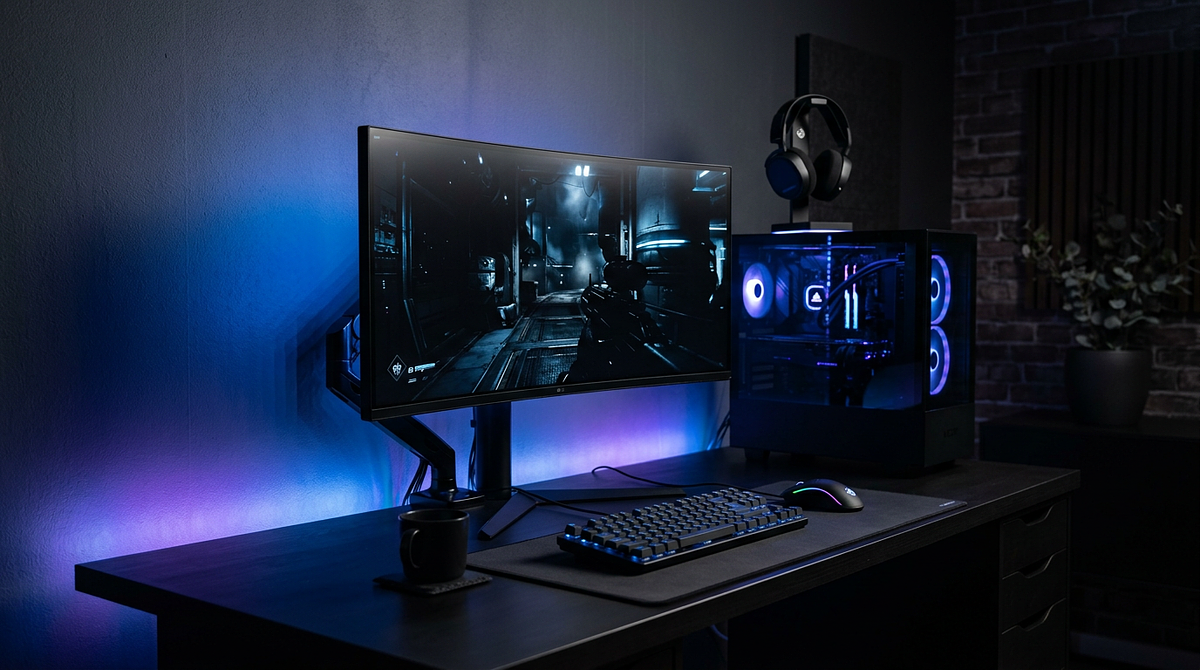
A gaming setup with LED lights does two things at once: it makes your desk more comfortable to work at and gives you control over the look and feel of your space. This guide covers everything you need to know, from picking the right LED products to installing and syncing lights across popular brands like Govee, Nanoleaf, Razer, and Corsair. You’ll find product recommendations for every budget, from basic $50 setups to premium builds over $350, plus placement advice for small desks and full room installs. By the end, you’ll have a clear plan for building an LED setup that fits your space and your budget.
Understanding LED Lighting Types for Gaming Environments
Before you buy anything, it helps to know the four main types of LED lighting and what each one is actually good for. Most well-done gaming setups use more than one type rather than relying on a single solution.
LED Strip Lights
LED strip lights are flexible, adhesive-backed strips that you can run along desk edges, behind monitors, or under shelves. They usually come in 6.5 to 16.5 foot lengths and are the most versatile option for creating ambient glow effects.
Best applications:
- Behind monitors to reduce eye strain through bias lighting
- Along desk rear edges for subtle workspace definition
- Under floating shelves to highlight collectibles without direct glare
- Inside PC cases for internal hardware illumination
Strip lights need a nearby power outlet, and they work best when you can’t actually see the LED diodes themselves. The goal is to see the glow, not the strip. Most use 3M adhesive backing that bonds permanently to surfaces, so think through your placement before you stick anything down.
LED Light Bars
Light bars are compact units, usually 12 to 18 inches long, that put out focused, directional light. Where strips give you a soft, diffused glow, bars create defined zones of light. They work well for task lighting or for washing a wall with color. They’re also a good fit for setups where the lighting hardware itself is part of the look rather than something you want to hide.
LED Wall Panels
Modular wall panels let you build geometric patterns on your wall that double as art and lighting. Premium options like Nanoleaf Shapes and Govee Glide let you control each panel individually for complex color patterns and animations. Starter kits run $150 to $300, so they’re the biggest upfront cost of any lighting type. They also need some planning before you mount them. The payoff is a lot of visual impact, but they work best in a dedicated gaming room rather than a shared space.
Smart Bulbs and Floor Lamps
Smart RGB bulbs and gaming floor lamps light up the whole room rather than just your desk. They fill vertical space and add atmosphere without requiring you to mount anything on furniture or walls. Smart bulbs need compatible fixtures and tend to produce less vivid colors than strips or panels. Floor lamps are the easiest of all to install, though they do take up floor space.
Strategic LED Placement for Clean RGB Gaming Setups
Before you buy a single product, it’s worth thinking through your lighting zones and color choices. The most common mistake people make is trying to light every surface. Restraint almost always looks better than maximum coverage.
The Three-Zone Lighting Framework
Good gaming setups use three distinct lighting zones that complement each other without competing. This approach avoids the scattered, overwhelming look that comes from poorly planned RGB installs.
Primary Zone – Monitor Backlighting: Mount LED strips directly behind your monitor to create a soft halo that reduces eye strain and frames your main focus area. Position the strips 2 to 3 inches from the monitor edges so the light projects onto the wall rather than spilling around the sides of the screen. For a single monitor, run one continuous strip around the back perimeter. For dual or triple monitor setups, use individual strips behind each display rather than connecting them. This gives you independent color control and avoids lighting gaps at the bezels.
Secondary Zone – Desk Perimeter: Add LED strips along the rear edge or underside of your desk to define your workspace without creating glare on your screen. Rear-edge mounting works best for desks against walls. Underside mounting suits floating or center-room desk positions. Keep desk lighting subtle. Aim for 30 to 40% brightness compared to your monitor backlighting. This creates depth without pulling your eye away from the displays.
Tertiary Zone – Accent Elements: Use light bars, wall panels, or floor lamps to add visual interest above or beside your main setup. Stick to one or two focal points rather than lighting every available surface. For wall-mounted monitors, place accent lighting above the displays. For desk-mounted setups, position accent elements to either side at eye level or above.
Color Coordination Strategies
Keeping your palette to two or three colors prevents the chaotic “rainbow puke” effect while still looking interesting. Most successful gaming setups use one of three approaches:
- Monochromatic: One color across all zones with brightness variations for depth (purple at 100% for monitor backlighting, 60% for desk edge, 40% for accent lights)
- Analogous: Adjacent colors on the color wheel (blue monitor backlighting, cyan desk edge, teal accents)
- Complementary: Two opposite colors used strategically (orange monitor backlighting with blue accent lights, keeping desk edge neutral white)
Don’t mix more than three distinct colors at once, and hold off on rainbow cycling effects unless you’re in a specific gaming session where reactive lighting actually adds to the experience.
Common Placement Mistakes to Avoid
A few placement errors come up again and again in gaming setups. Always position strips so you see the light effect, not the individual LEDs. Direct LED visibility looks harsh. Multiple bright accent lights create visual noise, so pick one primary accent zone and keep everything else subtle. Wall-mounted elements at varying heights look messy. Align panels and bars to consistent horizontal or vertical lines. Visible power cables and controllers ruin an otherwise clean setup, so plan your cable routing before you mount anything. And remember: more lights don’t automatically mean better results. Strategic darkness creates contrast that makes the lit areas stand out more.
Budget-Tiered Product Recommendations for Gaming Lighting Setup
Gaming LED lighting covers a wide price range, and the differences between tiers are real. Knowing what you actually get at each price point helps you spend your budget where it matters most.
Entry Tier: $50-100 Complete Setup
Entry-tier lighting gives you basic RGB without smart home features or advanced sync. These products are a solid starting point for first-time builders or anyone who wants to keep costs low without worrying about ecosystem compatibility. If you’re also thinking about other ways to upgrade your workspace on a budget, the best gaming setup accessories guide covers the most impactful additions across different price points.
| Product Category | Recommended Option | Key Features | Limitations |
|---|---|---|---|
| LED Strip (16.5ft) | Generic RGB Strip with Remote | Basic color control, music sync, remote operation | No app control, limited color accuracy, basic adhesive |
| Light Bars (2-pack) | Budget USB Light Bars | Simple RGB modes, USB powered | No individual control, preset effects only |
| Controller | IR Remote or Basic Bluetooth | Color wheel selection, brightness adjustment | No scheduling, no integration with other devices |
A complete desk setup with monitor backlighting and desk edge strips will run you $60 to $85. This tier works best for small single-monitor setups, temporary installs in dorm rooms or apartments, and anyone who prefers manual control over automation. A typical setup uses a 16.5ft LED strip split between monitor backlighting (6ft) and the desk rear edge (10ft), controlled by the included remote, plus two USB light bars flanking the monitor for vertical accent lighting powered directly from PC USB ports.
Mid-Range Tier: $100-250 Complete Setup
Mid-range lighting adds app control, better color accuracy, and basic ecosystem compatibility. This tier offers the best value for most people. Products like Govee DreamView or Envisual TV Backlight kits give you app control, music sync, and screen mirroring. Govee Smart Light Bars offer individual control and scene modes with Alexa and Google compatibility. Philips Hue White & Color bulbs have a solid app ecosystem and reliable performance, though you’ll need a Hue Bridge to unlock all the features.
A complete room setup with monitor backlighting, desk lighting, and ambient room illumination runs $150 to $220. This tier is a good fit for dual-monitor setups, anyone who wants app control and voice assistant support, and people building toward a larger smart home setup.
Premium Tier: $250-400+ Complete Setup
Premium lighting delivers advanced sync, better build quality, and full ecosystem support. Nanoleaf Shapes Hexagons give you individual panel control with touch-reactive features and broad third-party compatibility. Razer Chroma Light Bars or Corsair iCUE LT100 sync natively with gaming peripherals and support advanced effects. Philips Hue Gradient Lightstrips produce excellent color accuracy and have deep app support, though again, you’ll need a Hue Bridge.
A complete room setup with premium components and full ecosystem support runs $300 to $450. This tier makes the most sense for dedicated gaming rooms, streamers who need consistent lighting on camera, and anyone already invested in the Razer or Corsair peripheral ecosystem. Streamers in particular should also look at professional streaming room ideas to make sure their lighting works well on camera alongside the rest of their broadcast setup.
Installation and Synchronization for Best Lighting for Gaming Room
Good LED installation starts with planning your power access, cable routing, and sync setup before you mount anything. Most problems come from skipping this step, not from bad products.
Pre-Installation Planning
Before you open any packaging, map out your lighting zones and check your power needs. Count every strip, light bar, and panel in your planned setup, then check each product’s power adapter specs (typically 12V 2A for strips, USB for light bars). Find available outlets within 6 feet of each lighting zone and pick up power strips or extension cables if needed. Don’t daisy-chain power strips.
For cable routing, trace a path from each light location to the nearest outlet. Plan runs behind desk legs, along wall baseboards, or through cable management channels. Measure the cable lengths you’ll need and order extensions before you start the install.
LED Strip Installation Process
Getting a clean strip install comes down to surface prep and careful cutting. Start by wiping down mounting surfaces with isopropyl alcohol to remove oils and dust that weaken the adhesive. Do a dry run with the strips before removing the backing to confirm placement and find any spots where you’ll need to cut at the designated cut points. Apply strips in sections, peeling 6 to 12 inches of backing at a time and pressing firmly to avoid air bubbles.
Add extra 3M mounting tape at corners and endpoints where the adhesive takes the most stress. Plug in and test before doing any cable management to make sure every section lights up. Then route and secure cables using adhesive cable clips or channels to hide power cables along desk legs or wall baseboards.
Multi-Brand Synchronization Setup
Getting lights from different brands to work together means understanding what each ecosystem supports. Razer Synapse automatically detects Razer Chroma devices and compatible third-party products like Philips Hue and Nanoleaf through built-in integrations. Corsair iCUE controls Corsair lighting products and a limited number of third-party devices through iCUE integration partners. The Govee Home App manages all Govee products with scene sync but has limited support for external devices.
For mixed setups, group lights by control method and keep Razer or Corsair ecosystem lights separate from Govee or generic lights. Camera-based screen mirroring systems like Govee DreamView work with any content regardless of brand, which makes them a practical option for universal sync. Set up manual scenes in your smart home app for consistent ambient lighting when you’re not gaming. Perfect cross-brand sync is rarely achievable, so focus on coordinating colors rather than exact timing.
Cable Management Solutions
Visible cables can ruin an otherwise clean lighting setup. Bundle all power cables running in the same direction using cable sleeves, then route them along desk legs or wall baseboards with adhesive clips every 12 inches. Hide power strips and excess cable length in under-desk trays or behind desk drawers. For a more thorough approach to keeping your desk tidy, the gaming desk cable management guide for beginners covers tools and techniques at every budget level. Use velcro ties at connection points so you can disconnect things easily when you need to make adjustments later.
Achieving Professional Gaming Setup White and RGB Balance
A well-planned LED setup improves your gaming environment without overwhelming it. The best setups layer multiple lighting types across distinct zones, use a limited color palette, and install everything cleanly. Start with monitor backlighting. It’s the single biggest improvement you can make, it reduces eye strain right away, and it costs $80 to $100. From there, add desk perimeter lighting and accent elements one at a time, testing each addition before committing to a permanent install. Good gaming lighting is as much about what you leave dark as what you light up. Contrast is what makes the lit areas actually pop.
Frequently Asked Questions About Gaming Setup LED Lighting
Can I use regular LED strips instead of gaming-specific products?
Generic LED strips work fine for basic ambient lighting, but gaming-specific products offer screen sync and game-reactive effects that generic strips don’t have. Choose based on whether you want static colors or dynamic effects.
How do I prevent LED strips from falling off my desk?
Clean mounting surfaces thoroughly with isopropyl alcohol before installation, and reinforce strip corners and endpoints with extra 3M mounting tape where the adhesive takes the most stress.
Do all RGB lights work with Razer Chroma or Corsair iCUE?
No. Only products that specifically advertise Chroma Connect or iCUE compatibility will work with those ecosystems. Most generic RGB lights need their own separate app.
What’s the difference between RGB and RGBIC LED strips?
RGBIC strips can display multiple colors at the same time across their length, while standard RGB strips show only one color at a time. RGBIC lets you do gradients and flowing effects, but it costs 30 to 50% more.
How many LED lights can I connect to one power outlet?
Most LED strips and light bars draw 10 to 24 watts each, so a standard 15-amp outlet can safely power 6 to 8 typical gaming lights. Use a power strip with surge protection rather than daisy-chaining outlets.
Will LED lights damage my monitor or desk?
Quality LED strips are generally safe for electronics and furniture. The real risk comes from cheap products that run hot. Stick to reputable brands, make sure there’s airflow around your setup, and you’re unlikely to run into problems. If you’re ready to pick the right strips for your space, our LED buying guide can help you find a reliable option.